Python Install
Download, install, and verify Python on your computer. Pick the tab for your operating system.
Step-01: What You Will Learn
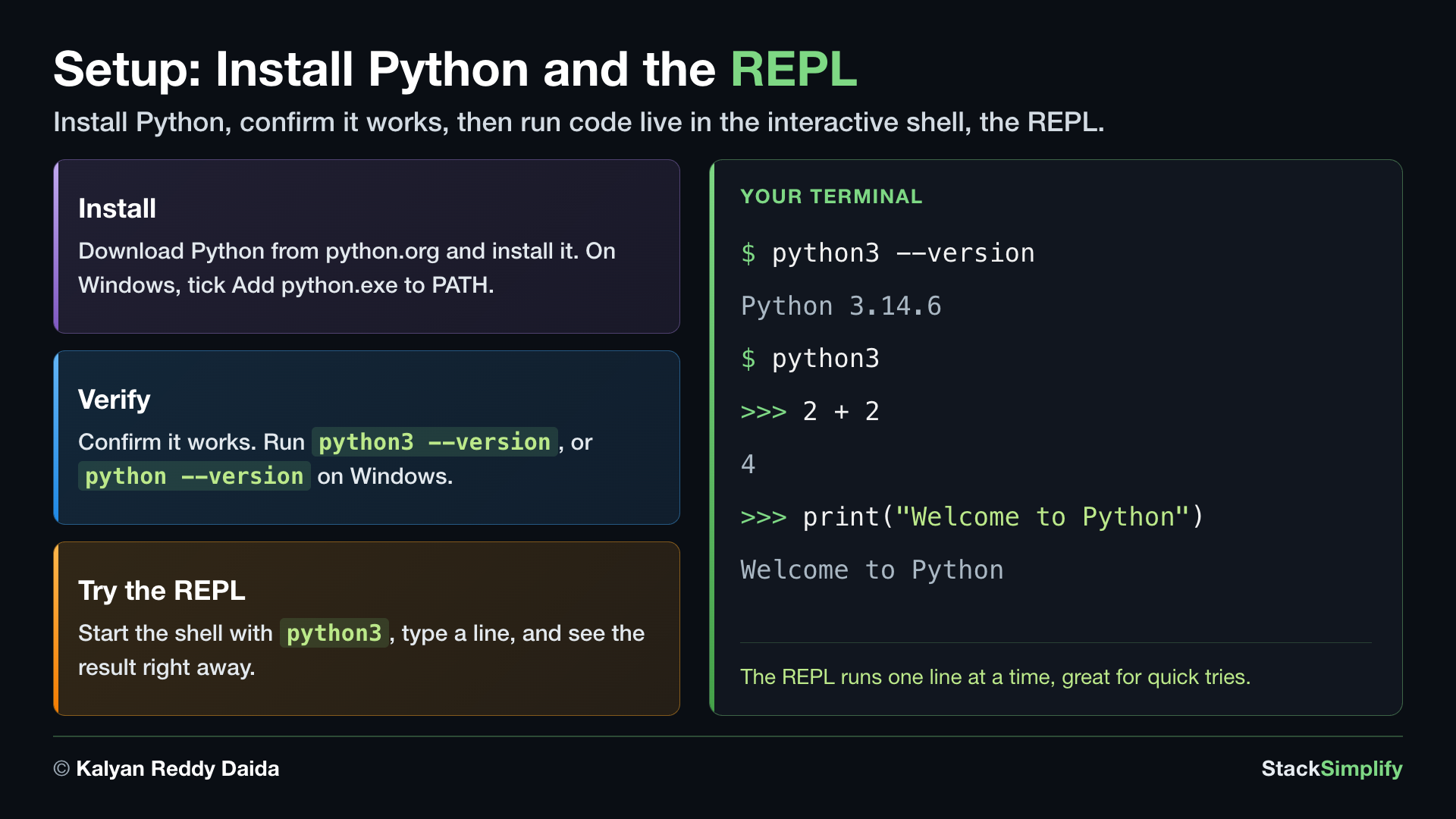
In this lesson you will:
- Check whether Python is already installed.
- Install Python on your operating system (macOS, Windows, or Linux).
- Verify the installation from the Terminal.
- Test Python in its interactive shell (the REPL).
Step-02: Install, Verify, and Test Python
Pick the tab for your operating system.
macOS already includes an older Python, so install the current version from python.org.
Verify any existing Python version
Open the Terminal and run the command below.
Note: On macOS the command may be
pythonorpython3, depending on how Python was installed. We usepython3throughout this course to avoid confusion.
Download Python
Download Python only from the official, trusted site: python.org/downloads.
Install Python
- Double-click the downloaded package.
- Follow the on-screen instructions to finish the installation.
Verify the installation
Run the same command again in the Terminal.
Output: You should now see the Python version you just installed.
Test the Python interactive shell (REPL)
- Start the Python shell:
- You should see a prompt like this:
Python 3.14.6 (v3.14.6:c63aec69bd5, Jun 10 2026, 08:07:54) [Clang 21.0.0 (clang-2100.1.1.101)] on darwin
Type "help", "copyright", "credits" or "license" for more information.
>>>
- Type each line and press Enter:
- Exit the shell:
Remember to tick "Add python.exe to PATH" during install, or Python will not run from the Terminal.
Download Python
Download Python only from the official, trusted site: python.org/downloads.
Install Python
- Double-click the downloaded package.
- Check the box "Add python.exe to PATH" at the bottom of the first installer screen.
- Follow the on-screen instructions to finish the installation.
Important: The "Add python.exe to PATH" checkbox is easy to miss. If you skip it, Python will not run from the Terminal. If that happens, run the installer again and tick the box.
Verify the installation
Windows Terminal is the modern app that runs Command Prompt (cmd), PowerShell, or other shells. It is the recommended way to use Python on Windows.
- Open Windows Terminal: press
Windows + R, typewt, and press Enter. - Run the command below.
Output: You should now see the Python version you just installed.
Note: On Windows the command is
python, notpython3. (macOS and Linux usepython3.)
Test the Python interactive shell (REPL)
- Start the Python shell:
- You should see a prompt like this:
Python 3.14.6 (tags/v3.14.6:c63aec69bd5, Jun 10 2026, 08:07:54) [MSC v.1944 64 bit (AMD64)] on win32
Type "help", "copyright", "credits" or "license" for more information.
>>>
- Type each line and press Enter:
- Exit the shell:
On Linux you install Python through the system package manager (apt or dnf), so there is no separate download from the website.
Verify any existing Python version
Open the Terminal and run the command below.
Note: On Linux the command may be
pythonorpython3, depending on the distribution. We usepython3throughout this course to avoid confusion.
Install Python
Use the package manager for your distribution.
Ubuntu / Debian
# Refresh the package list
sudo apt update

# Install Python, pip, and venv
sudo apt install python3 python3-pip python3-venv

# Install build tools and dev headers (some packages need these)
sudo apt install python3-dev build-essential
RHEL / CentOS / Fedora
# Refresh the package metadata
sudo dnf check-update

# Install Python, pip, and dev headers
sudo dnf install python3 python3-pip python3-devel

# Install build tools (some packages need these)
sudo dnf groupinstall "Development Tools"
Verify the installation
Run the command again in the Terminal.
Output: You should now see the Python version you installed.
Test the Python interactive shell (REPL)
- Start the Python shell:
- You should see a prompt like this:
Python 3.14.6 (main, Jun 10 2026, 08:07:54) [GCC 13.2.0] on linux
Type "help", "copyright", "credits" or "license" for more information.
>>>
- Type each line and press Enter:
- Exit the shell: