02. Variables and Data Types
View code on GitHub Download slides (PDF) Get the Video Course
This is your real start in Python. You write and run your first program, learn to leave comments for yourself, get the most out of print(), then store values in variables (learning the rules for naming them along the way) and meet the core data types that every Python program uses. You finish with the keywords Python keeps for itself.
Practice as you go
Each concept below has matching exercises. When you finish a step, head to the Practice problems for this section, then try the optional Workshop - every problem includes a solution you can expand.
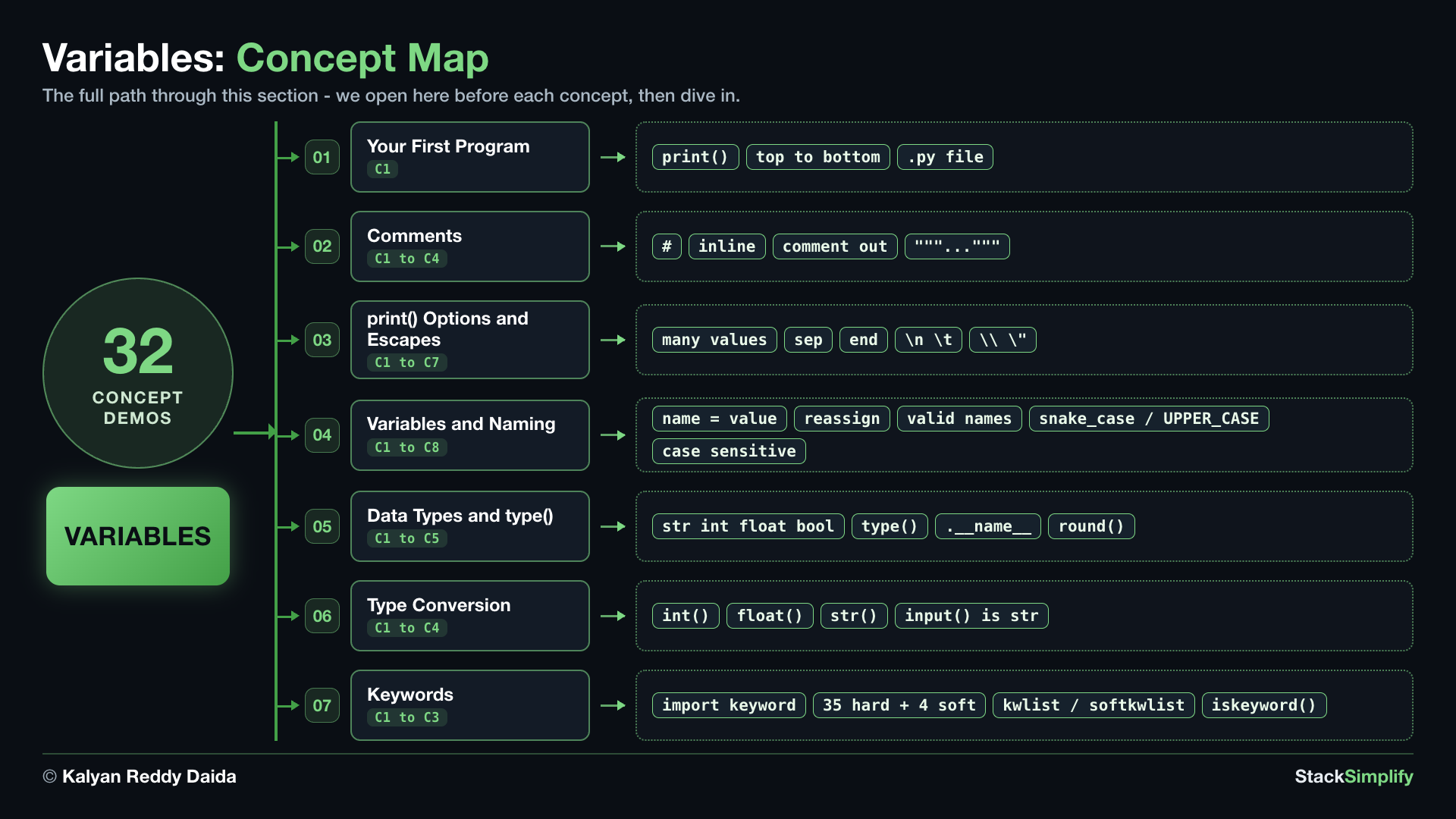
Step-00: What You Will Learn
By this section's end you will:
- Write and run your first Python program with
print(). - Write comments to explain your code.
- Use
print()options and escape sequences: several values,sep,end,\n,\t, and\\/\". - Store values in variables and name them well.
- Use the everyday data types:
str,int,float, andbool, check them withtype(), and round a decimal withround(). - Convert a value from one type to another.
- Follow Python's naming rules and avoid the reserved keywords.
- Get your first look at
importto bring in one of Python's ready-made modules.
Keywords in This Section
Here are the keywords this section introduces (the bright green ones):
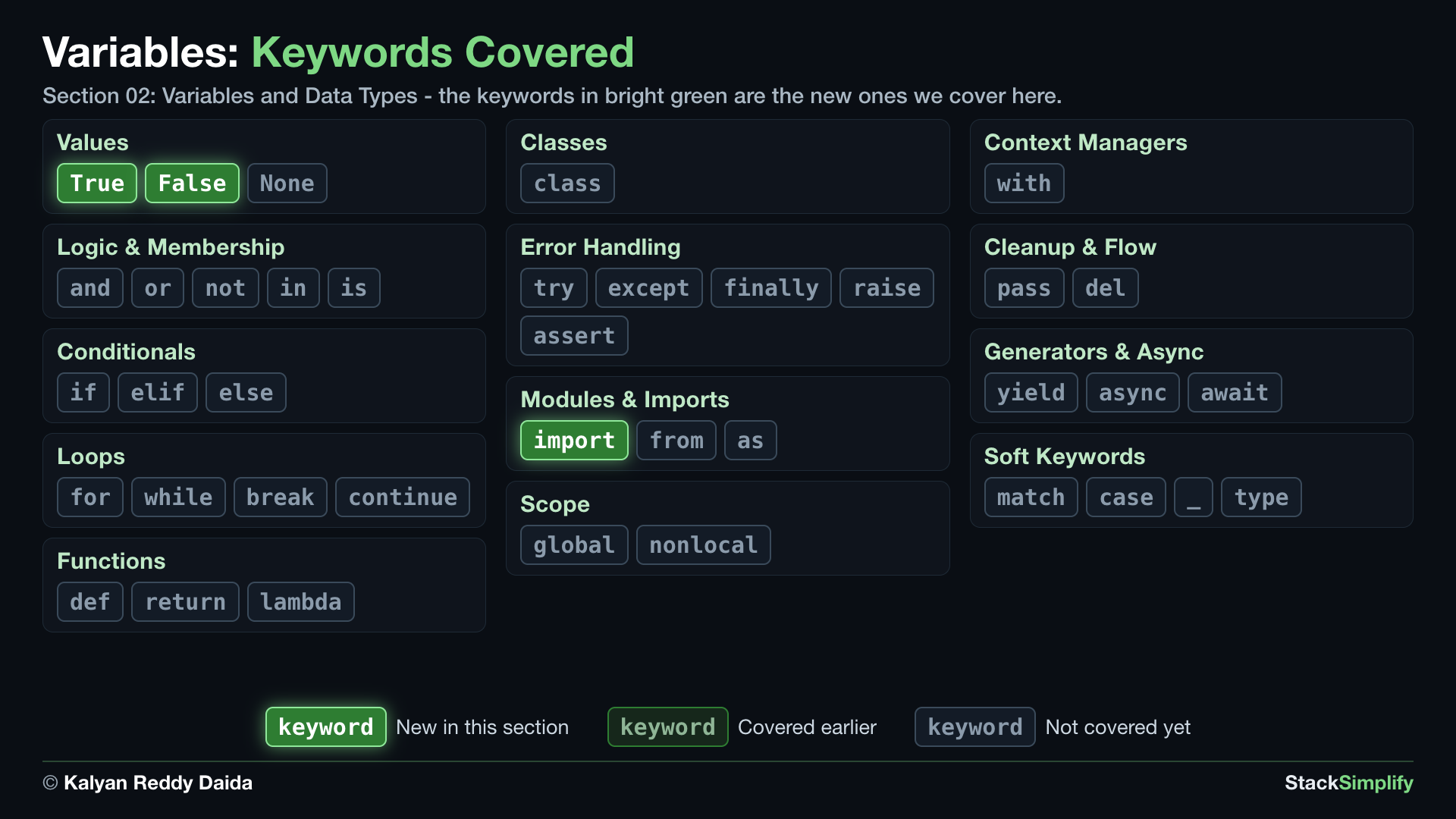
In the map, bright green marks the keywords this section introduces. Dim green marks keywords you already covered in earlier sections, and gray marks the ones still ahead.
Step-01: Your First Program
File: s02_step01_first_program.py
You already have Python and VS Code set up. Open the python-learn folder, click New File, name it s02_step01_first_program.py, and build this one concept.
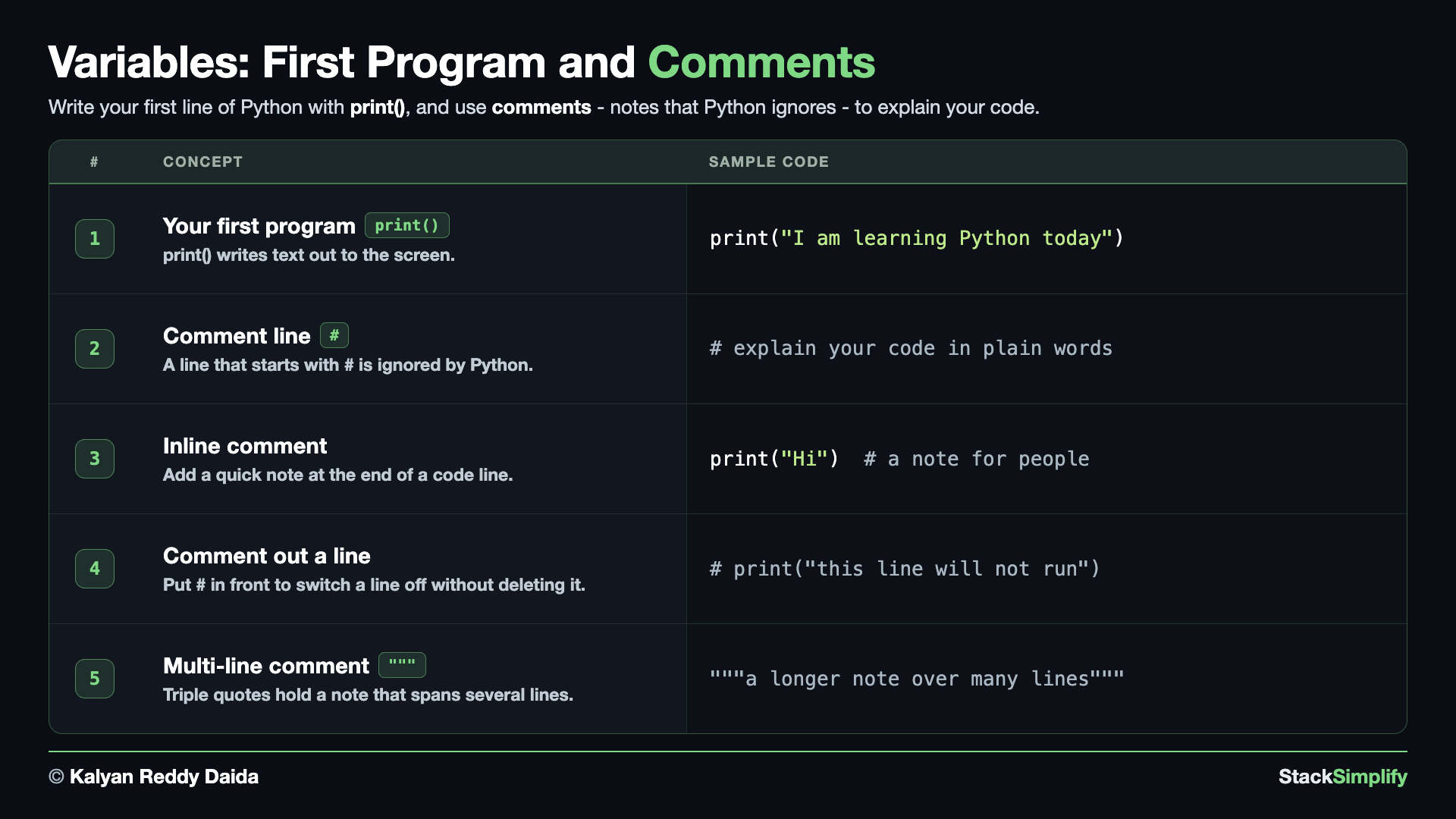
Concept 1: Your first program with print()
print() is how your program shows text on the screen. You put the message inside the round brackets, in quotes, and Python writes it out when the line runs. Python reads your file top to bottom, one line at a time, so the order you write things is the order they happen. To run the file, click the play triangle in the top-right of the editor, or type python3 s02_step01_first_program.py in the terminal and press Enter.
# Concept-01: Your first program; print() shows text on the screen
# Question: How do we show a message like "I am learning Python today" on the screen so a person can read it? (print(...) writes text out)
print("I am learning Python today")
A file is your code saved on disk, so you can run it again, change it, and build on it.
Pages for this step: Concept | Practice | Workshop
Python Files for this step: Concept | Practice | Practice Solutions | Workshop | Workshop Solutions
Step-02: Comments
File: s02_step02_comments.py
A comment is a note in your code for people to read; Python ignores it completely. Create s02_step02_comments.py and build it concept by concept.
Concept 1: A comment starts with
Everything after a # on a line is a comment, and Python skips right over it. You use comments to explain why your code does something, in plain words, so that a future reader (often you) understands the intent. A line that is only a comment produces no output at all.
# Concept-01: A comment starts with # and Python ignores it
# Question: How do we write notes in code that Python will ignore?
# Use comments to explain what your code does, in plain words.
Concept 2: An inline comment
You can also put a comment at the END of a line of code. The code part still runs as normal, and the # plus everything after it is the note. This is handy for a quick label right next to the line it describes.
# Concept-02: An inline comment sits at the end of a code line
# Question: How do we add a quick note at the end of a line of code?
print("Comments are notes for people, not for Python")  # This is an inline comment
Concept 3: Comment out a line
Putting a # in front of a working line of code switches it off without deleting it. This is called "commenting out" a line, and it is the fastest way to silence some code for a moment while you test something. Remove the # later to switch it back on. Because the line is now a comment, it prints nothing.
# Concept-03: "comment out" a line (put # in front) to switch it off without deleting it
# Question: How do we temporarily turn off a line of code without erasing it?
# print("You will not see this line run")
Concept 4: A multi line comment
When a note needs several lines, you can wrap it in triple quotes ("""..."""). As long as it is not assigned to a variable, Python ignores the whole block, so it works like a longer comment. Use it for a paragraph of explanation at the top of a file or above a tricky piece of code.
# Concept-04: A multi line comment uses triple quotes (start with """ and end with """)
# Question: How do we write a note that spans many lines?
"""
This is a multi line comment.
Python ignores everything inside the triple quotes
when it is not assigned to a variable.
Use it for a longer note that spans several lines.
"""
A good comment says why you did something, not just what the code already shows.
Pages for this step: Concept | Practice | Workshop
Python Files for this step: Concept | Practice | Practice Solutions | Workshop | Workshop Solutions
Step-03: print() Options and Escape Sequences
File: s02_step03_print_options.py
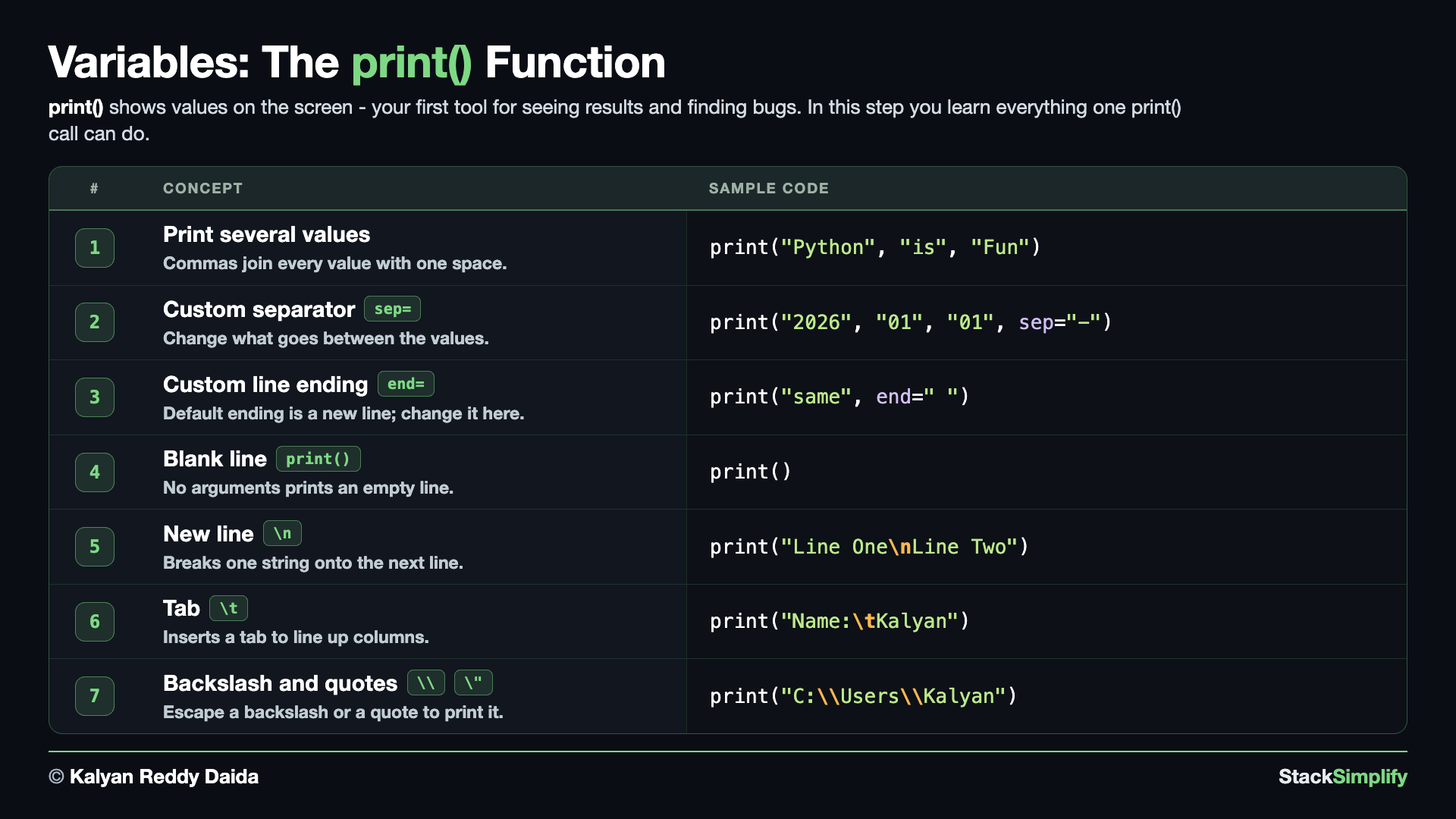
print() can do more than show one thing. You can pass several values, change how they are joined, and use special characters. Create s02_step03_print_options.py and build it concept by concept.
Concept 1: Print several values
Give print() several values separated by commas and it shows them all on one line. By default it puts a single space between each value, so you do not have to add spaces yourself. This is the quick way to print a few things together.
# Concept-01: Print several values; print puts a space between them
# Question: How do we print several values like "Python", "is", "Fun" on one line, and what goes between them? (print joins them with one space by default)
print("Python", "is", "Fun")
Concept 2: Change the separator with sep
The sep option controls what print() puts BETWEEN the values, in place of the default space. Set sep="-" and the values are joined with a dash, which is perfect for something like a date. You can use any text you like as the separator.
# Concept-02: Change the separator between values with sep
# Question: How do we put a custom character like '-' or '/' between printed values like "2026", "01", "01", as in a date? (sep="-" or sep="/")
print("2026", "01", "01", sep="-")
print("2026", "01", "01", sep="/")
Concept 3: Change the ending with end
Normally print() drops to a new line after it finishes, because its default ending is a newline. The end option changes that ending. Set end=" " and the next print() continues on the SAME line, joined by a space instead of a line break.
# Concept-03: Change what print puts at the end with end (the default end is a new line)
# Question: How do we make the next print stay on the same line instead of dropping down? (end=" " replaces the default newline)
print("same", end=" ")
print("line")
Concept 4: An empty line with print()
Calling print() with nothing inside the brackets prints an empty line. It is the simplest way to add vertical space and separate blocks of output so they are easier to read.
# Concept-04: print() with nothing makes an empty line
# Question: How do we print an empty line?
print("Python", "is", "Fun")
print()
print()
print("same", end=" ")
print("line")
Concept 5: A new line inside text with \n
An escape sequence is a backslash \ followed by a letter that means something special. The most common is \n, which starts a new line right inside a single string. So one print() can produce several lines of output by putting \n where each break should be.
# Concept-05: \n starts a new line inside one string
# Question: How do we break text like "Line One\nLine Two\nLine Three" onto a new line inside one string? (put \n where the line should break)
print("Line One\nLine Two\nLine Three")
Concept 6: A tab with \t
\t is another escape sequence: it inserts a tab, a jump to the next column. It is handy for lining up a label and its value into neat columns without counting spaces.
# Concept-06: \t inserts a tab
# Question: How do we line up text into neat columns, like the label "Name:" and the value "Kalyan Reddy"? (\t inserts a tab)
print("Name:\tKalyan Reddy")
Concept 7: Print a literal backslash or quote
Because a backslash STARTS an escape, you need a way to print a real backslash or a quote that matches the surrounding quotes. You escape it: \\ prints one backslash (handy for Windows paths), and \" (or \') prints a quote inside the same quote style. The backslash tells Python "treat the next character as plain text".
# Concept-07: A backslash starts an escape, so to print a literal backslash or quote you escape it
# Question-1: How do we print a Windows path with backslashes like "C:\\Users\\Kalyan"? (\\ prints one backslash)
# Question-2: How do we print a quote mark inside the same quotes, like "She said \"Hello\"" or 'It\'s a deal'? (\" prints a double quote; \' prints a single quote)
print("C:\\Users\\Kalyan")
print("She said \"Hello\"")
print('It\'s a deal')
A lone backslash is not plain text
Inside a string the backslash \ begins an escape sequence, so writing a Windows path as "C:\Users" can change or break your text. Double it (\\) to print one real backslash, and escape a matching quote with \" or \'.
Pages for this step: Concept | Practice | Workshop
Python Files for this step: Concept | Practice | Practice Solutions | Workshop | Workshop Solutions
Step-04: Variables
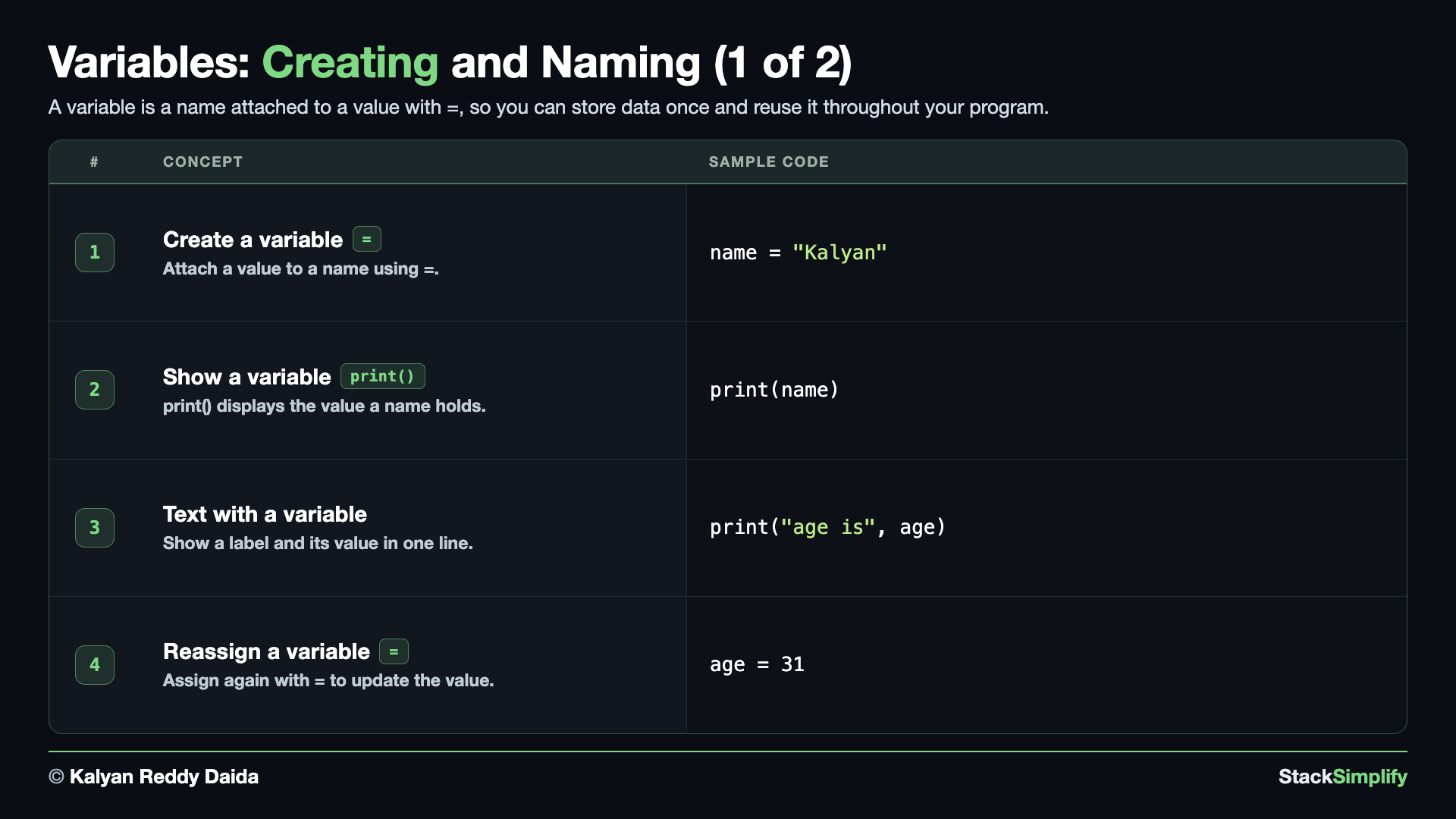
File: s02_step04_variables.py
A variable is a name attached to a value. You create one with =: the name on the left, the value on the right. Create s02_step04_variables.py and build it concept by concept.
Concept 1: A variable names a value
A variable is a label you stick on a value so you can use it again later by name. You create one with =, putting the name on the left and the value on the right. You do not declare a type: Python reads the type straight from the value, so name = "Kalyan" is text and age = 30 is a whole number. This first concept just creates the variables, so it prints nothing.
# Concept-01: A variable is a name attached to a value. You create one with =
# Question: How do we create a label (name) that holds a value so we can use it later?
name = "Kalyan"
age = 30
price = 19.99
Concept 2: Show a variable's value
Once a variable holds a value, you can pass its NAME to print() to see what it holds. Notice there are no quotes around name here: quotes would print the word "name", but the bare name prints its value, Kalyan.
# Concept-02: Display a variable's value using print()
# Question: How do we show what value a variable holds?
name = "Kalyan"
age = 30
price = 19.99
print(name)
print(age)
print(price)
Concept 3: Print text together with variables
Often you want a label next to a value, like name is Kalyan. Pass print() both the text in quotes and the variable, separated by a comma, and it shows them on one line with a space between. This reads much better than printing the value alone.
# Concept-03: Print text together with variables
# Question: How do we display a description and a variable's value together in one line?
name = "Kalyan"
age = 30
price = 19.99
print()
print("name is", name)
print("age is", age)
print("price is", price)
Concept 4: A variable can be reassigned
A variable is not locked to its first value: you can give it a new value any time with = again. After age = 31, the old 30 is gone and age now holds 31. This is called reassignment, and it is how a value changes as your program runs.
# Concept-04: A variable can be changed (reassigned) later
# Question: How do we update someone's age after each birthday? (reassign the same variable with =)
age = 31
print("age update-1:", age)
age = 32
print("age update-2:", age)
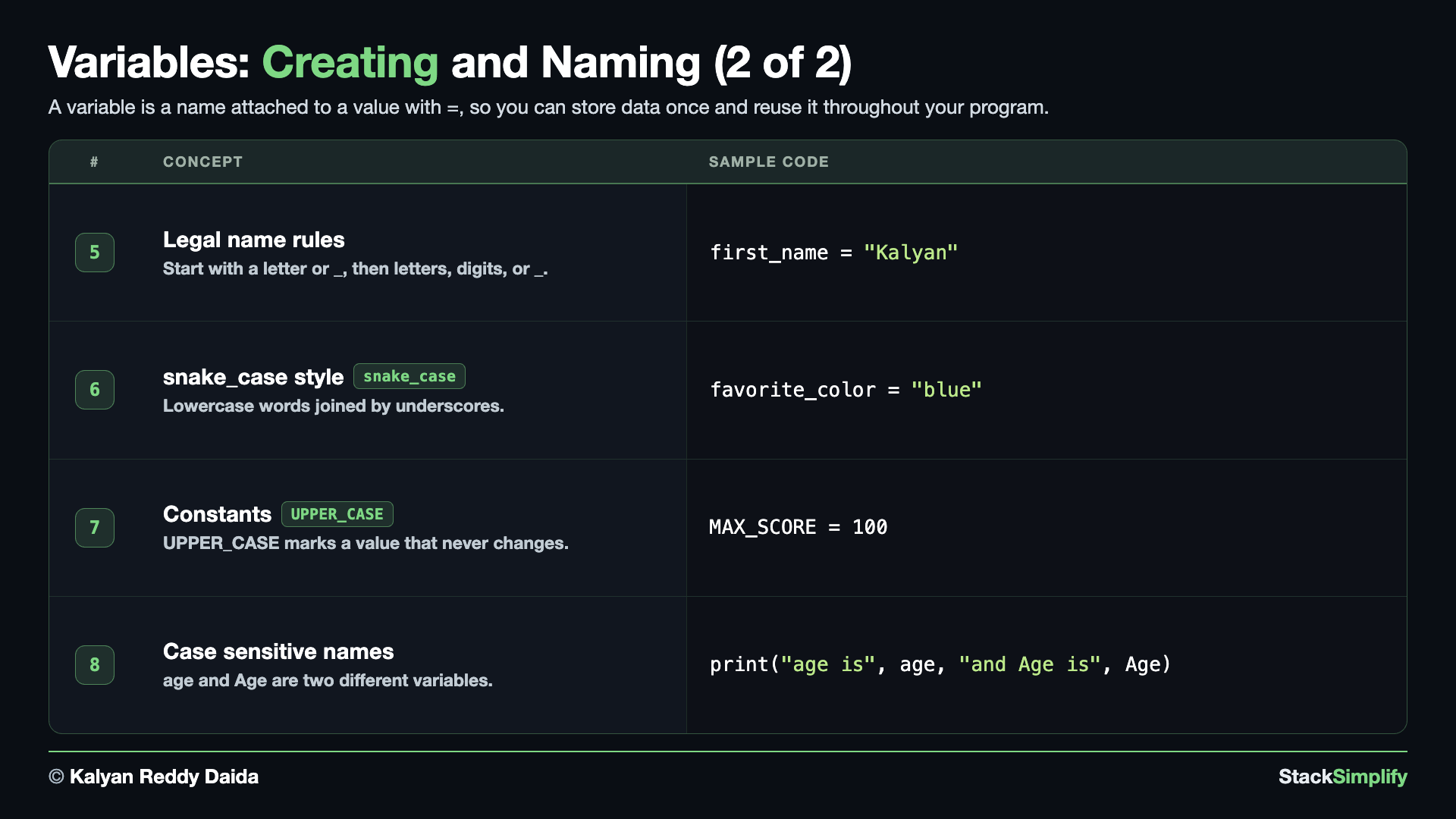
Concept 5: Rules for a valid name
These rules are required, not just style. A valid name starts with a letter or an underscore, then continues with letters, digits, or underscores. No spaces and no symbols like - are allowed, and a name can never start with a digit. Break any of these and Python raises a SyntaxError.
# Concept-05: Rules for a valid variable name (these are required)
# Question: What names are LEGAL in Python? (start with a letter or _, then letters, digits, or _ ; no spaces or symbols)
first_name = "Kalyan"   # letters
user_age = 30           # letters, underscore, and digits
_secret = True          # may start with _ (a leading _ means "internal use")
score2 = 95             # digits are allowed, but NOT as the first character
print(first_name, user_age, _secret, score2)

# These names are NOT allowed because each line would cause a SyntaxError:
# 2nd_place = "silver"   # cannot start with a digit
# first name = "Kalyan"  # no spaces allowed
# user-age = 30          # no hyphen or other symbols
Concept 6: Name variables in snake_case
The standard Python style for variable names is snake_case: lowercase words joined by underscores, like favorite_color. It keeps names easy to read and is what other Python programmers expect. Prefer it over styles like favoriteColor.
# Concept-06: Naming rule: use snake_case, lowercase words joined with underscores
# Question: How do we name a variable so others know what it holds? (snake_case, lowercase words joined by underscores)
favorite_color = "blue"
print("favorite color is", favorite_color)
Concept 7: Constants in UPPER_CASE
When a value is meant to stay the same for the whole program, the convention is to write its name in UPPER_CASE, like MAX_SCORE. Python does not actually stop you from changing it, but the capitals are a clear signal to readers: "this is a constant, leave it alone".
# Concept-07: For values that never change (constants), use UPPER_CASE by convention
# Question: How do we name a value that should stay the same for the whole program? (use UPPER_CASE by convention)
MAX_SCORE = 100
print("MAX_SCORE is", MAX_SCORE)
Concept 8: Names are case sensitive
Capitalization is part of a name, so age and Age are two completely different variables. This trips up many beginners, so keep your capitalization consistent when you read and reuse a name.
# Concept-08: Names are case sensitive, so age and Age are two different variables
# Question: Does capitalization matter in a name? (yes, age and Age are two different variables)
age = 1
Age = 2
print("age is", age, "and Age is", Age)
Python reads the type from the value
You never declare a type for a variable. Python looks at the value on the right of = and decides: "Kalyan" makes it a str, 30 makes it an int. Reassigning to a different value can even change the type later.
Pages for this step: Concept | Practice | Workshop
Python Files for this step: Concept | Practice | Practice Solutions | Workshop | Workshop Solutions
Step-05: Data Types and type()
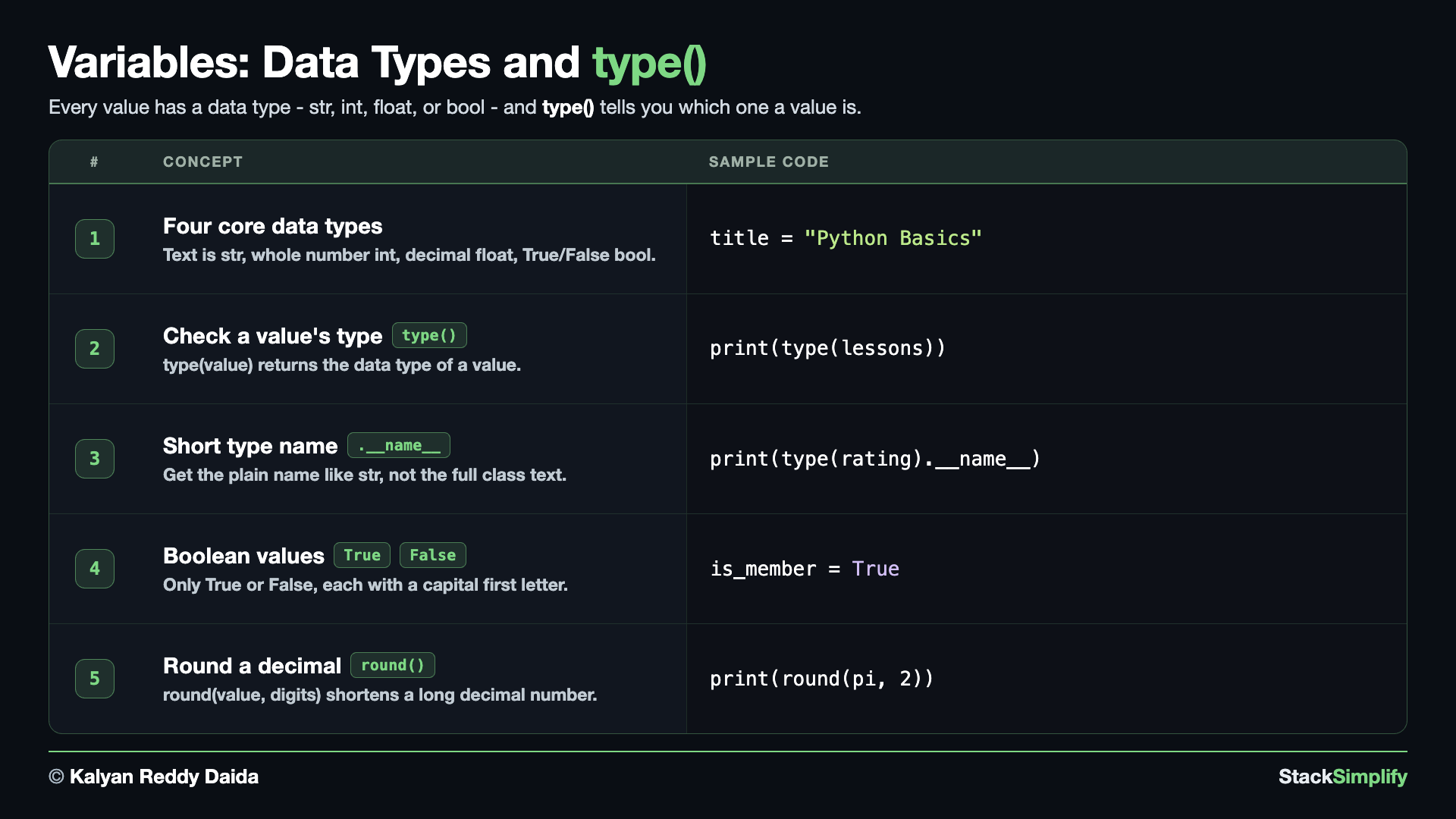
File: s02_step05_data_types.py
Every value has a type. These four cover almost everything you do as a beginner.
| Type | Holds | Example |
|---|---|---|
str | text | "Python Basics" |
int | whole number | 12 |
float | decimal number | 4.5 |
bool | True or False | True |
Create s02_step05_data_types.py and build it concept by concept.
Concept 1: The four everyday data types
These four types cover almost everything a beginner needs. Text goes in quotes and is a str; a whole number is an int; a number with a decimal point is a float; and a yes/no value is a bool (True or False). Python picks the type from how you write the value.
# Concept-01: The four everyday data types
# Question: How do we pick the right data type for a value? (str text, int whole number, float decimal, bool True/False)
title = "Python Basics"  # str: text, written in quotes
lessons = 12  # int: a whole number
rating = 4.5  # float: a decimal number
is_free = True  # bool: True or False

print(title)
print(lessons)
print(rating)
print(is_free)
Concept 2: Check a type with type()
When you are not sure what type a value is, type(value) tells you. It returns the type in the form <class 'str'>, <class 'int'>, and so on. This is your quick way to confirm a value is what you expect before working with it.
# Concept-02: type(x) returns the data type of a value.
# Question: How do we find out what type a value is when we are unsure? (type(value) returns its type)
title = "Python Basics"  # str: text, written in quotes
lessons = 12  # int: a whole number
rating = 4.5  # float: a decimal number
is_free = True  # bool: True or False
print()
print("Types using type():")
print(type(title))
print(type(lessons))
print(type(rating))
print(type(is_free))
Concept 3: Get the short type name
The <class '...'> form is a bit noisy to print. Add .__name__ and you get just the short name, like str or int. That reads much more cleanly when you want to show a type next to a label.
# Concept-03: type(x).__name__ gives the short name.
# Question: How do we get just the short name of a data type, like 'str' or 'int', instead of '<class ...>'?
title = "Python Basics"  # str: text, written in quotes
lessons = 12  # int: a whole number
rating = 4.5  # float: a decimal number
is_free = True  # bool: True or False
print()
print("Type names using type(x).__name__:")
print("title   ->", type(title).__name__)
print("lessons ->", type(lessons).__name__)
print("rating  ->", type(rating).__name__)
print("is_free ->", type(is_free).__name__)
Type names using type(x).__name__:
title   -> str
lessons -> int
rating  -> float
is_free -> bool
Concept 4: A bool is only True or False
A bool holds just one of two values: True or False. Both must be written with a capital first letter, because Python is case-sensitive. They are perfect for yes/no flags like is_member or is_admin.
# Concept-04: bool holds only True or False (note the CAPITAL T and F)
# Question: How do we write a True or False value correctly? (only True or False, with a capital first letter)
print()
is_member = True
is_admin = False
print("is_member:", is_member)
print("is_admin:", is_admin)
print("bool type:", type(is_member).__name__)

# Python is case sensitive: True and False must be capitalized.
# Lowercase true / false are NOT booleans and would cause a NameError.
Concept 5: Round a decimal with round()
round(value, digits) shortens a long decimal to the number of places you ask for. round(3.14159, 2) gives 3.14, and round(3.14159, 0) gives 3.0 (still a float). With no digits at all, round(19.99) rounds to the whole int 20. (To FORMAT a number for display, the f-string :.2f spec comes in Section 03.)
# Concept-05: round() shortens a long decimal; round(value, digits)
# Question: How do we shorten a long decimal like 3.14159 to 2 places? (round(value, 2); to FORMAT one for display, an f-string :.2f comes in Section 03)
pi = 3.14159
print("round(pi, 2) keeps 2 decimals:", round(pi, 2))
print("round(pi, 0) keeps 0 decimals, still a float:", round(pi, 0))
price = 19.99
print("round(price) with no digits gives a whole int:", round(price))
round(pi, 2) keeps 2 decimals: 3.14
round(pi, 0) keeps 0 decimals, still a float: 3.0
round(price) with no digits gives a whole int: 20
True and False need a capital letter
A bool must be written as True or False with a capital first letter. Python is case-sensitive, so lowercase true / false are not booleans and raise a NameError.
Pages for this step: Concept | Practice | Workshop
Python Files for this step: Concept | Practice | Practice Solutions | Workshop | Workshop Solutions
Step-06: Type Conversion
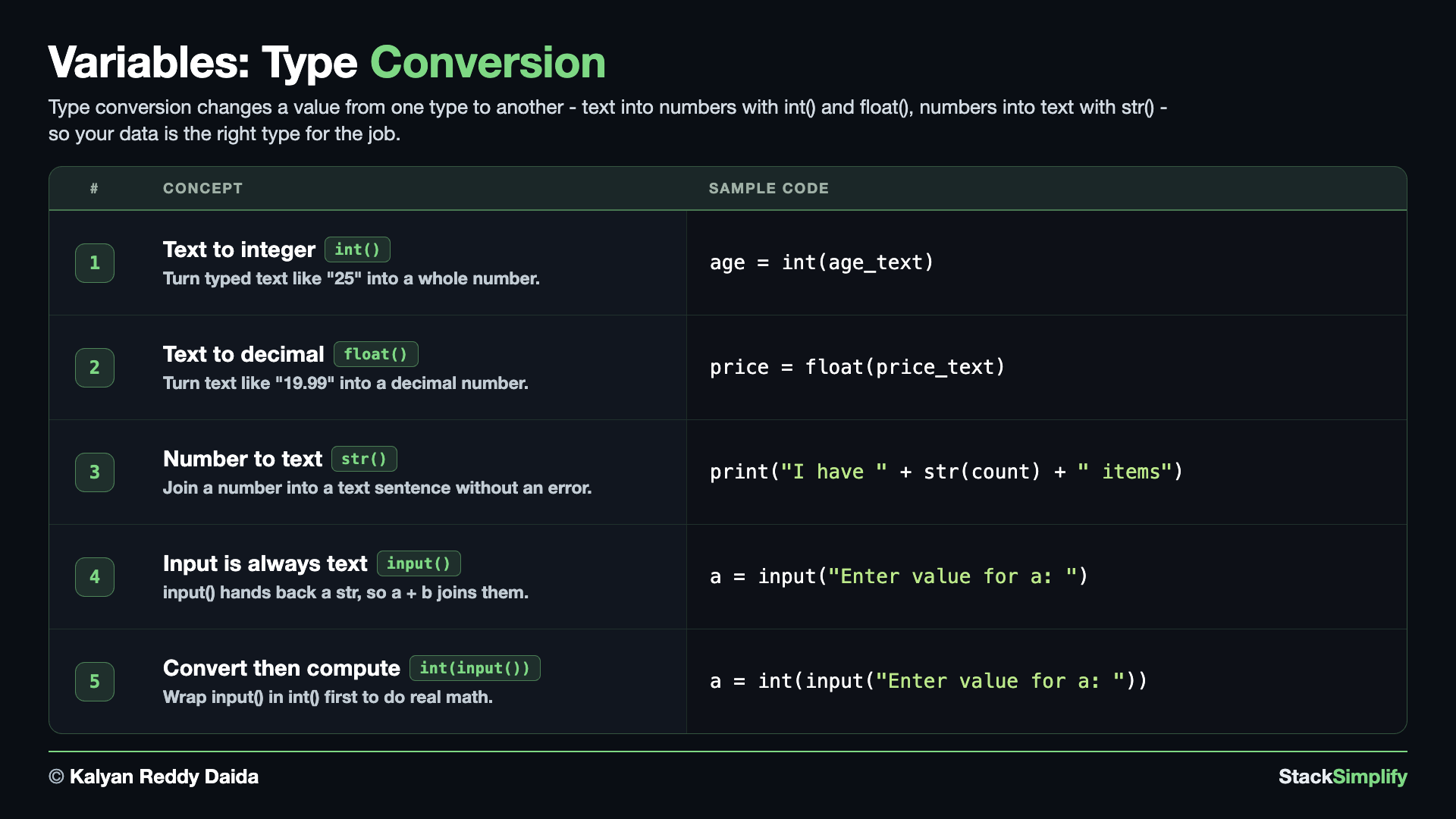
File: s02_step06_type_conversion.py
Values often arrive as the wrong type, for example text that should be a number. You convert with int(), float(), and str(). Create s02_step06_type_conversion.py and build it concept by concept.
Concept 1: Text to a whole number with int()
A value like "25" looks like a number but is really text, so you cannot do math with it directly. int("25") converts that text into the whole number 25, and then + 5 does real addition instead of joining text. Use int() whenever a number has arrived as a string.
# Concept-01: Convert text to an integer using int()
# Question: How do we turn typed text like "25" into a whole number so we can do math? (int(text))
age_text = "25"
# Error: cannot add a string and a number
# print(age_text + 5)
print("age_text type:", type(age_text))

age = int(age_text)  # str -> int
print("age type:", type(age))
print(age + 5)  # Now math works
Concept 2: Text to a decimal with float()
When the text holds a decimal, like "19.99", you convert it with float() instead of int(). float("19.99") gives the decimal number 19.99, which you can then add to or multiply with other numbers.
# Concept-02: Convert text to a decimal number using float()
# Question: How do we turn text like "19.99" into a decimal number? (float(text))
price_text = "19.99"
# Error: cannot add a string and a number
# print(price_text + 5)
print()
print("price_text type:", type(price_text))

price = float(price_text)  # str -> float
print("price type:", type(price))
print(price + 5)
Concept 3: A number to text with str()
Going the other way, str() turns a number into text. You need this when you join a number into a sentence with +, because Python will not glue text and a number together directly. str(3) becomes "3", so "I have " + str(count) + " items" builds one clean string.
# Concept-03: Convert a number to text using str()
# Question: How do we join a number like 3 into a sentence of text like "I have 3 items" without an error? (str(number) turns it into text)
count = 3
# Error: cannot join text and a number
# print("I have " + count + " items")
print()
print("I have " + str(count) + " items")  # int -> str
Concept 4: Reading input with input() always gives a str
input() reads what the user types and ALWAYS hands it back as text, even if they type digits. Program-01 adds two typed values directly, so 10 and 20 JOIN into 1020 instead of adding to 30. Program-02 fixes it by wrapping each value in int(...) (use float(...) for decimals) before the math.
# Concept-04: input() always returns a str. Convert it before doing math.
# Question: How do we use a typed-in number in math when input() gives back text? (wrap it in int() or float() first)
# Program-01: Get input for a and b and print the sum
a = input("Enter value for a: ")
b = input("Enter value for b: ")
total = a + b
print(total)

"""
Program-01 Observations:
1. input() always returns a string.
2. If you enter "kalyan" and "reddy", Python joins them as "kalyanreddy".
3. If you enter "10" and "20", Python joins them as "1020".
4. To perform math, convert the inputs to integers using int().
"""
When you run it, it pauses for input:
Type 10, press Enter, then 20. Because the values are still text, they join instead of adding:
Program-02 wraps each input in int(), so the same 10 and 20 are real numbers and add up to 30:
# Concept-04 (Program-02): Convert input values to integers
a = int(input("Enter value for a: "))
b = int(input("Enter value for b: "))
total = a + b
print(total)

"""
Program-02 Observations:
1. If you enter 10 and 20, the output is 30.
2. The inputs are converted from strings to integers before addition.
3. If you enter text such as "kalyan", Python raises a ValueError.
"""
Run it the same way and type 10 then 20: now they are real numbers, so they add up to 30, not 1020:
Bad text crashes int() and float()
int("abc") or float("ten") cannot turn words into numbers, so Python stops with a ValueError. You learn to handle this safely in Error Handling and Debugging with try / except.
Pages for this step: Concept | Practice | Workshop
Python Files for this step: Concept | Practice | Practice Solutions | Workshop | Workshop Solutions
Step-07: Keywords
File: s02_step07_keywords.py
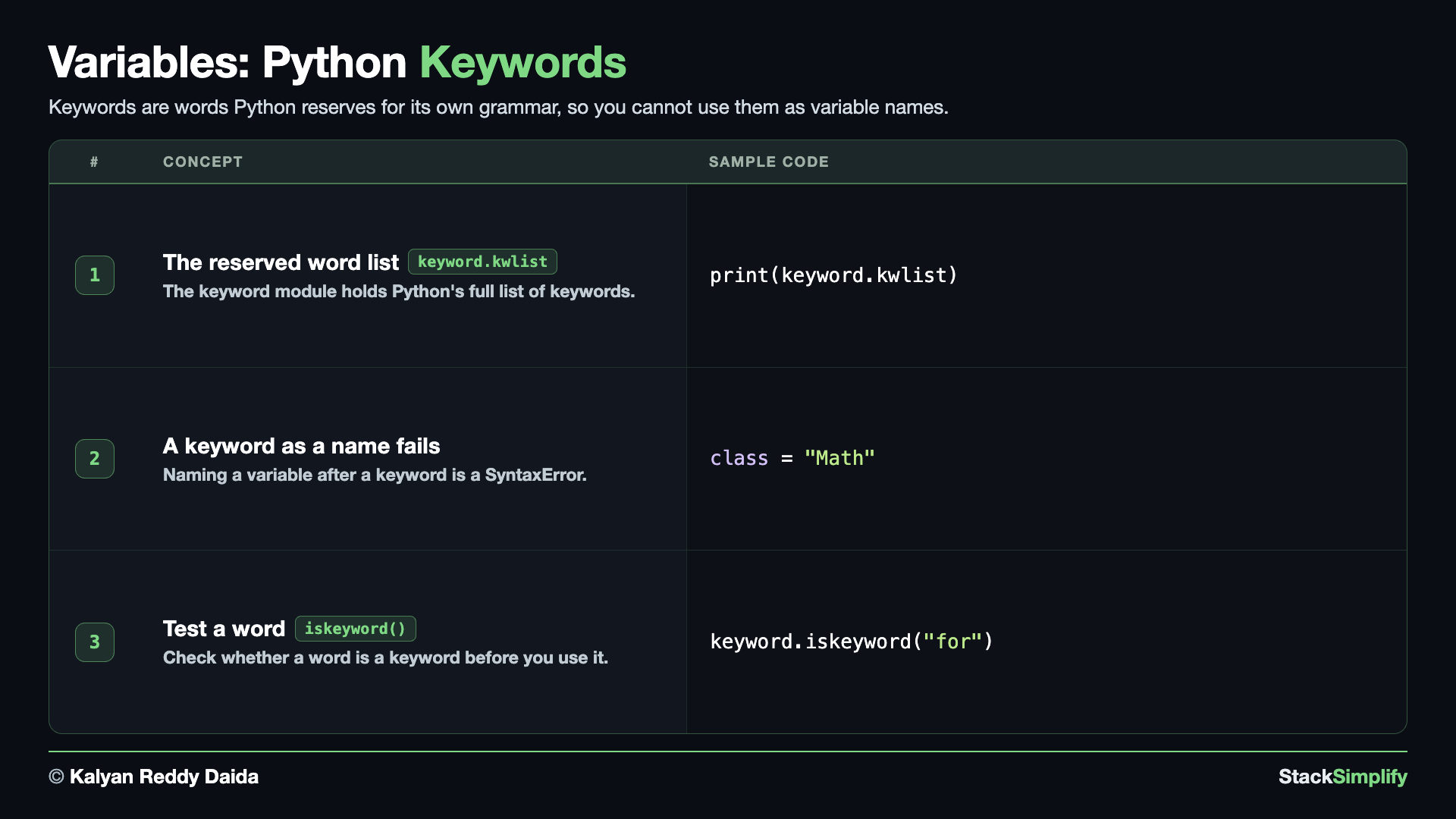
Python reserves a small set of keywords for itself, like if, for, and class, and you cannot use them as variable names. To list them all you also meet your first import. Create s02_step07_keywords.py and build it concept by concept.
Concept 1: Keywords and your first import
Keywords are words Python reserves for its own grammar, like if, for, class, and True - you cannot use them as variable names. To see them you meet your first import: import keyword loads a ready-made module that ships with Python, and you reach its tools with a dot. keyword.kwlist is the list of hard keywords (35 of them), and keyword.softkwlist is the small list of soft keywords (_, case, match, type) that are reserved only in certain places - 39 names in all. This first import is how you bring in tools Python does not give you by default; you go deeper later in Functions and Standard Library Essentials.
# Concept-01: Keywords are reserved words; you cannot use them as names
# Question: Which words are off-limits for using as variable names? (Python's keywords, like if, for, class, True; here is the full list)
import keyword
print(keyword.kwlist)
print(len(keyword.kwlist))
print(keyword.softkwlist)
print(len(keyword.softkwlist))
total_keywords = len(keyword.kwlist) + len(keyword.softkwlist)
print("Total Python Keywords: ", total_keywords)
['False', 'None', 'True', 'and', 'as', 'assert', 'async', 'await', 'break', 'class', 'continue', 'def', 'del', 'elif', 'else', 'except', 'finally', 'for', 'from', 'global', 'if', 'import', 'in', 'is', 'lambda', 'nonlocal', 'not', 'or', 'pass', 'raise', 'return', 'try', 'while', 'with', 'yield']
35
['_', 'case', 'match', 'type']
4
Total Python Keywords:  39
Concept 2: Keywords cannot be names
You cannot use a keyword as a variable name. If you try, Python stops with a SyntaxError before the program even runs - so these lines stay commented out here. Reusing a soft keyword like type as a name is allowed but still a bad idea, because it hides the built-in.
# Concept-02: Using a keyword as a name is a SyntaxError; these would not run:
# class = "Math"   # 'class' is reserved
# for = 10         # 'for' is reserved
Concept 3: Check a word with iskeyword() and issoftkeyword()
Two helpers tell you whether a word is reserved. Run 1 uses keyword.iskeyword(word) for the hard keywords (reserved everywhere); Run 2 uses keyword.issoftkeyword(word) for the soft ones (reserved only in some places). Each returns True or False. Watch for: it is a hard keyword (Run 1 True) but not a soft keyword (Run 2 False).
# Concept-03: Check a word with keyword.iskeyword() (hard keywords) and issoftkeyword() (soft keywords)
# Question-1: How do we check whether a word is a hard keyword, reserved everywhere? (keyword.iskeyword(word) - True for "for" or "class", False for an ordinary name like "name")
# Question-2: How do we check whether a word is a soft keyword, reserved only in some places? (keyword.issoftkeyword(word) - True for "match", False for a hard keyword like "for" or an ordinary word like "city")
import keyword
# Run 1 - iskeyword: hard keywords, reserved everywhere
print("  for:", keyword.iskeyword("for"))
print("  class:", keyword.iskeyword("class"))
print("  name:", keyword.iskeyword("name"))
# Run 2 - issoftkeyword: soft keywords, reserved only in some places (note: "for" is NOT a soft keyword)
print("  match:", keyword.issoftkeyword("match"))
print("  for:", keyword.issoftkeyword("for"))
print("  city:", keyword.issoftkeyword("city"))
Pages for this step: Concept | Practice | Workshop
Python Files for this step: Concept | Practice | Practice Solutions | Workshop | Workshop Solutions
Practice and Workshop
Every step has a matching practice problem - try it yourself, then expand the solution to check. Some practices end with a short input() "Write a Program" problem. Every step also has an optional workshop problem (the same idea in a car scenario). The numbers line up with the steps, so if you get stuck on practice-03, re-read Concept Step-03.
| Step | Concept Name | Concept | Practice | Workshop |
|---|---|---|---|---|
| 01 | first program | concept | practice | workshop |
| 02 | comments | concept | practice | workshop |
| 03 | print options | concept | practice | workshop |
| 04 | variables and naming | concept | practice | workshop |
| 05 | data types | concept | practice | workshop |
| 06 | type conversion | concept | practice | workshop |
| 07 | keywords | concept | practice | workshop |
Open the full Practice page and Workshop page for this section - each problem has its statement, expected output, an optional hint, and an expandable solution.
What You Learned
print()shows text; you run a.pyfile from the Run button or the terminal.- Comments (
#) are notes for people; Python ignores them. print()can take several values andsep/end; escape sequences like\n,\t,\\, and\"shape the output.- Variables name values, and Python reads the type from the value. Use snake_case names.
- The everyday types are
str,int,float, andbool;type()checks a type, andround()shortens a long decimal. int(),float(), andstr()convert between types, andinput()always gives you astr.- A valid name starts with a letter or underscore (never a digit); keywords like
ifandclassare reserved words you cannot use as names.
Next
Section 03: Strings and f-strings. Work with text the way real programs do. Variables and types are the base of every program you will ever write, including the data and machine learning code later in this course family.
Prefer to learn by watching?
The full video course teaches every concept on screen and builds the projects with you, step by step.
Section 01: Python Environment Setup Next: Section 03: Strings and f-strings