10. Files, JSON, and Paths
View code on GitHub Download slides (PDF) Get the Video Course
So far your programs forget everything the moment they stop. To keep data around, you save it to a file on disk and read it back later. In this section you will write and read text files, add lines to a file, save and load structured data as JSON, and work with file paths the modern way using pathlib.
Practice as you go
Each concept below has matching exercises. When you finish a step, head to the Practice problems for this section, then try the optional Workshop. Every problem includes a solution you can expand.
Each demo here writes a small file, reads it back, then removes the file at the end so your folder stays tidy. In a real program you would keep the file; here we clean up so nothing is left behind.
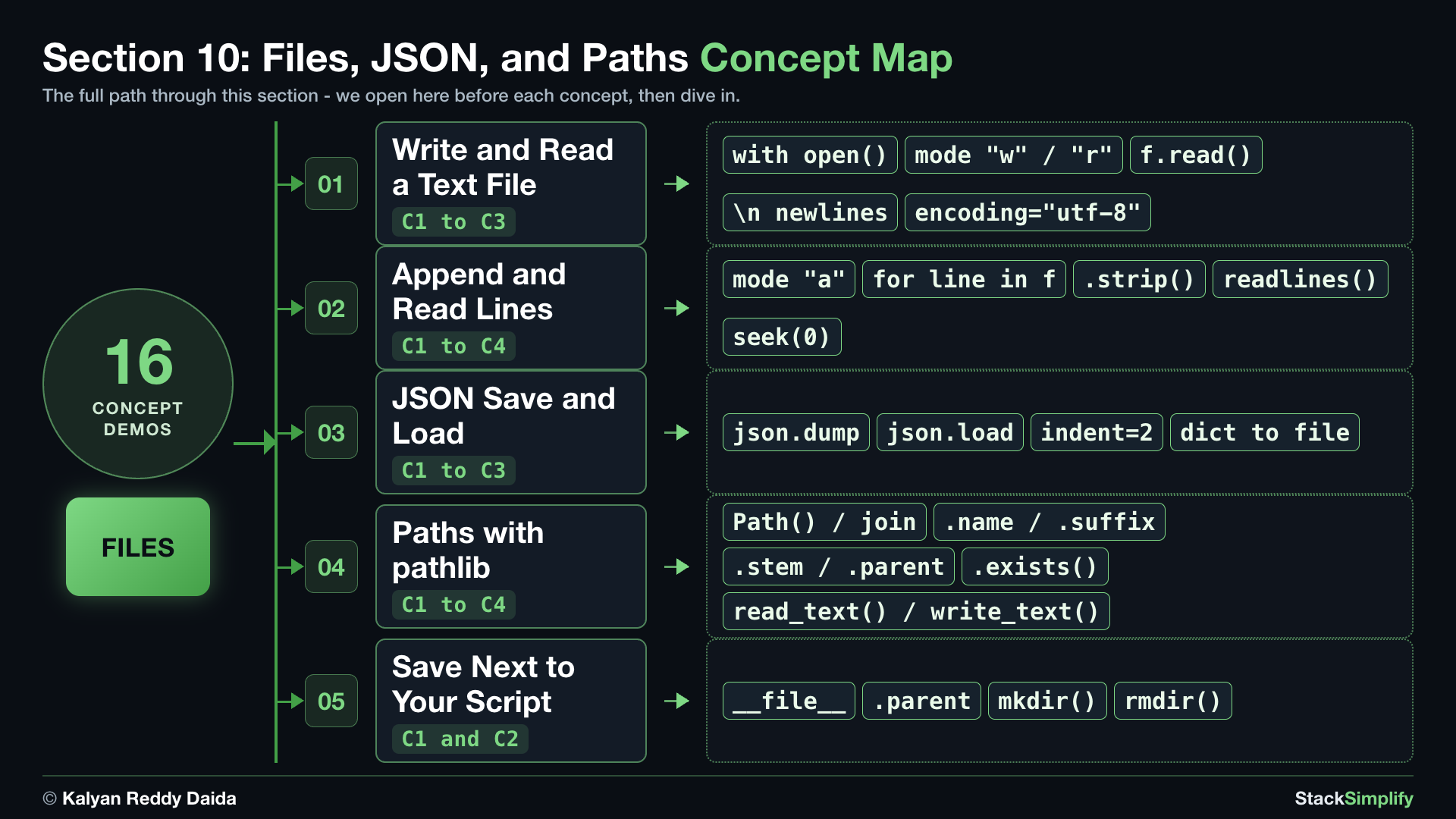
Step-00: What You Will Learn
By the time you finish this section you will:
- Write a text file with
open(...)and thewithstatement, then read it back, always passingencoding="utf-8". - Append new lines to a file and read it back one line at a time.
- Save a dictionary as JSON with
json.dump, and load it back withjson.load. - Build and inspect file paths with
pathlib: join with/, read.name,.suffix,.exists(), and read/write a whole file withread_text()/write_text(). - Make a folder with
mkdir()and save a file next to your script with__file__, so your data lands in the same place every time.
Keywords in This Section
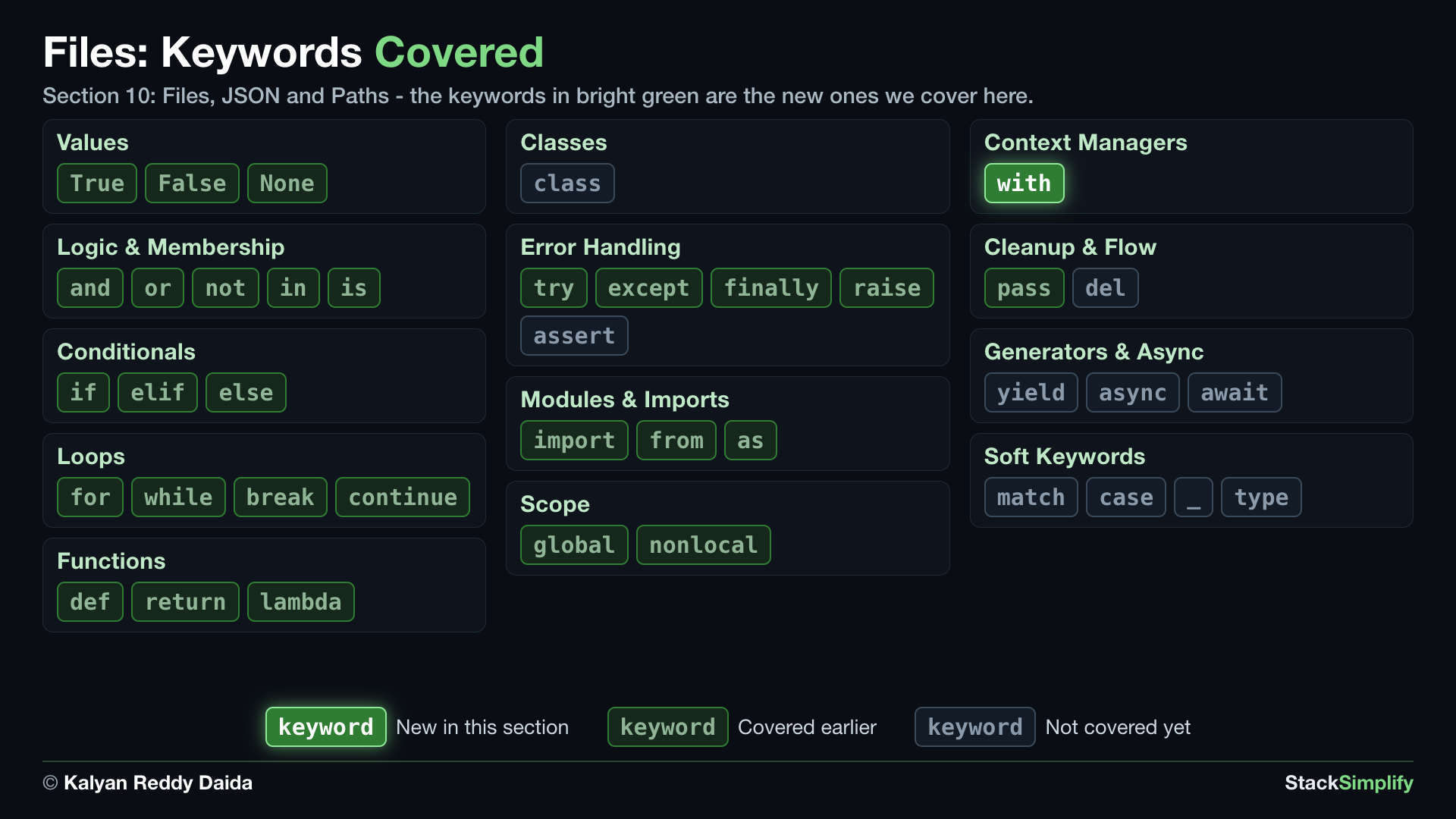
In the map, bright green marks the keywords this section introduces. Dim green marks keywords you already covered in earlier sections, and gray marks the ones still ahead.
Step-01: Write a Text File, Then Read It Back
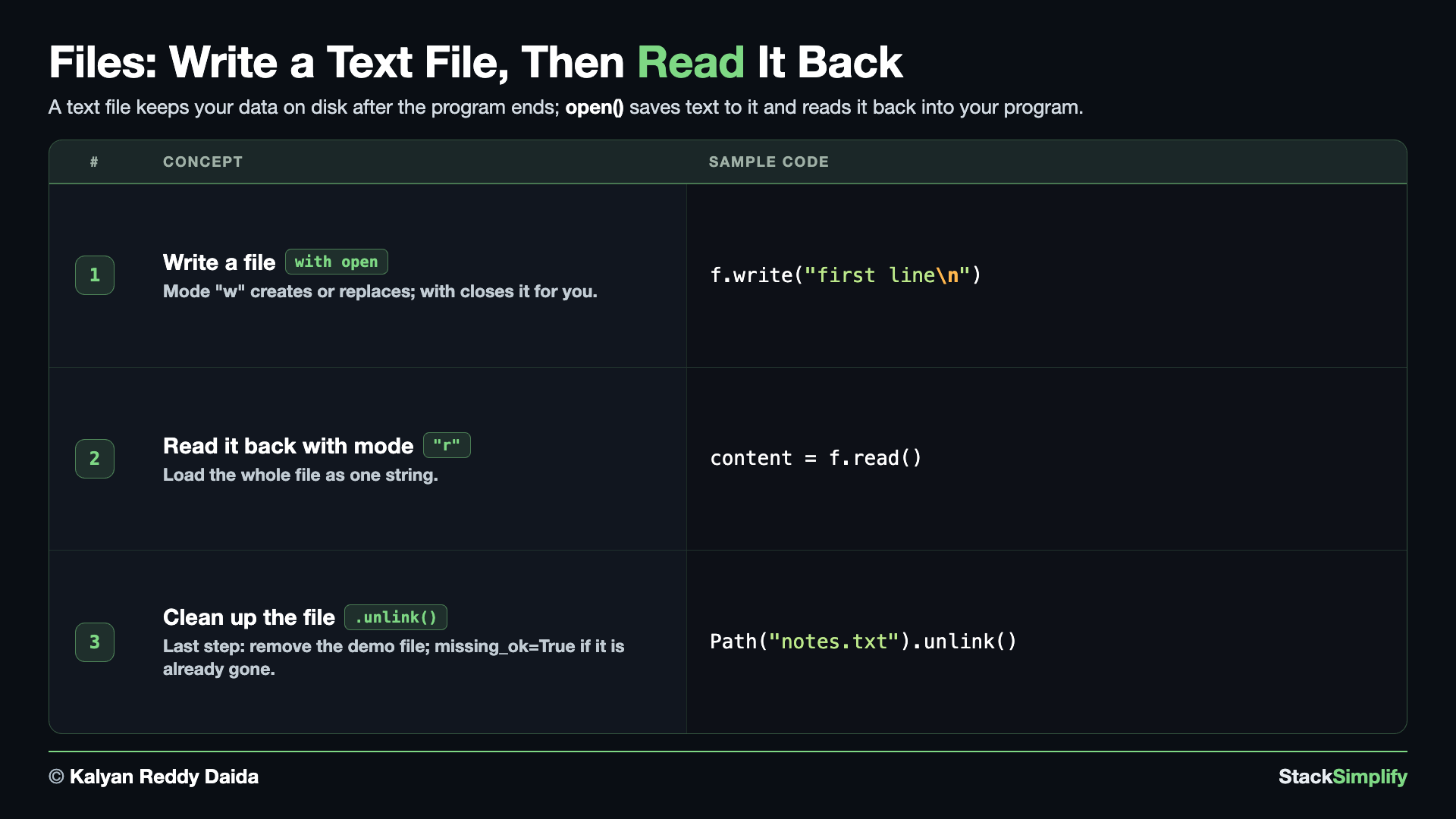
File: s10_step01_write_and_read_text.py
Saving text to disk is the simplest kind of file work, and it is where everything else starts. Create s10_step01_write_and_read_text.py in python-learn and build it concept by concept.
Concept 1: Write a file with with open(...) and mode "w"
Why every open() here passes encoding="utf-8"
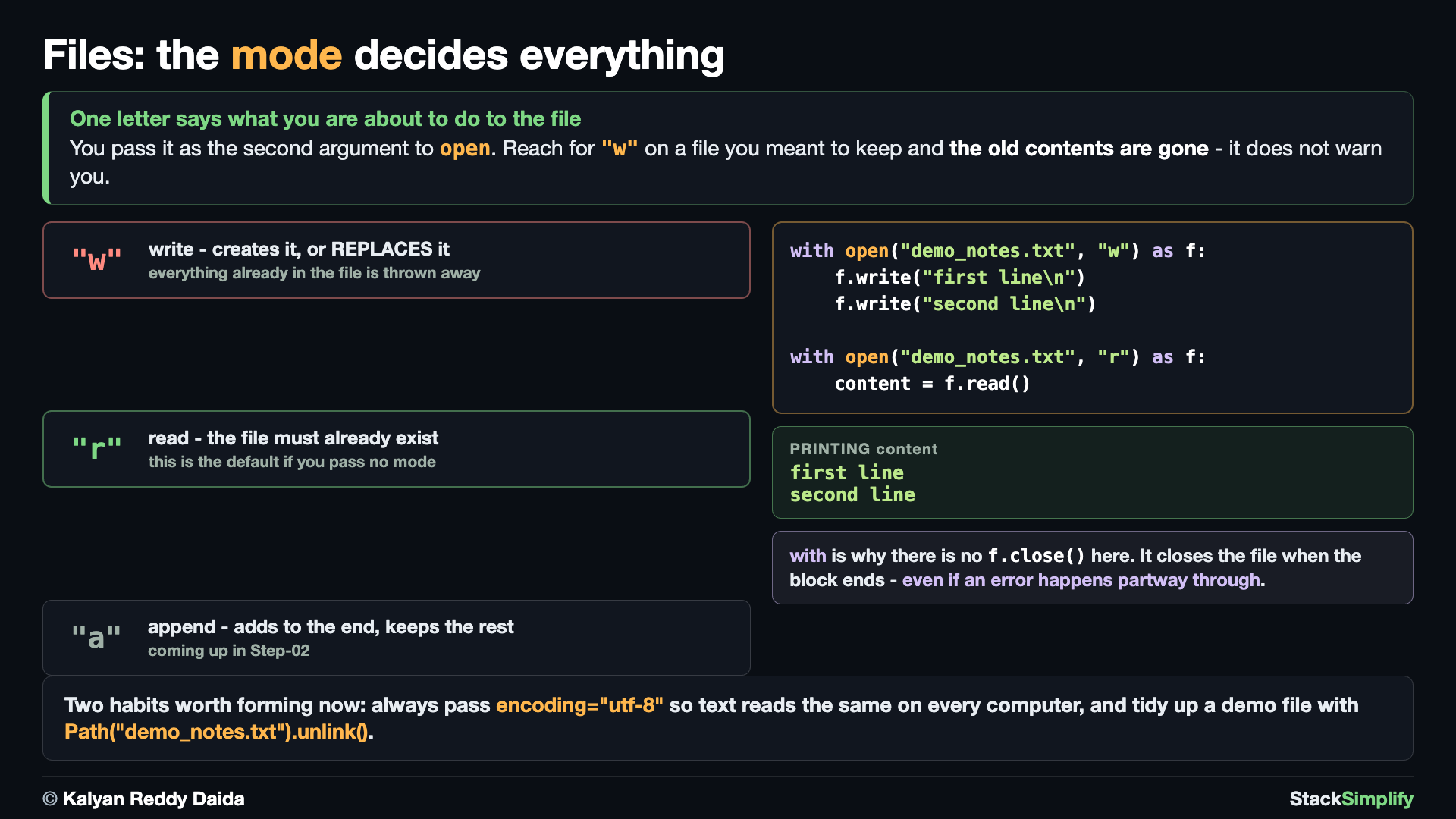
encoding="utf-8" tells Python how to turn text into bytes when it saves, and back into text when it reads. Pass it on every open() and your files read the same on Windows, Mac and Linux, even when they hold accented letters or symbols. It costs nothing and saves a class of bug that is miserable to debug, so it is a habit worth forming from your very first file. Every open() in this section does it.
The with open(...) statement opens a file and closes it for you, even if something goes wrong partway through - that automatic close is why it is the safe, standard way to work with files. The second argument is the mode: "w" means write, which creates the file if it does not exist and replaces whatever was there if it does. Each "\n" starts a new line, so the two f.write(...) calls below produce two lines in the file.
# Concept-01: 'with open(...)' opens a file, writes with mode "w", and closes it for you
# Question: How do we save text ("first line\n" then "second line\n") to a file, with Python closing the file for us even if something goes wrong partway through?
# The mode says what you are doing: "w" = write (creates the file, or replaces it if it exists), "r" = read.
# encoding="utf-8" tells Python how to turn text into bytes when it saves, and back into text when it
# reads. Pass it on EVERY open() and your files read the same on Windows, Mac and Linux, even when
# they hold accented letters or symbols. Every open() in this section does it.
with open("demo_notes.txt", "w", encoding="utf-8") as f:
    # Each "\n" starts a new line
    f.write("first line\n")
    f.write("second line\n")

print("saved demo_notes.txt")
Concept 2: Read the whole file back with mode "r"
Two things about modes that save a lot of confusion later. First, each open does one job: a file opened to write cannot be read, and a file opened to read cannot be written. You reopen it in the other mode, which is exactly what this block does. Second, leaving the mode out means "r", which is why you will see plain open(path) in other people's code. Write the mode out anyway, so your intent is obvious to whoever reads it next.
Mode "r" opens a file for reading, and f.read() hands you the entire file as one string. f.read() keeps the final \n, so printing it adds a blank line just before the next line of output. Reading the whole file at once is the simplest approach and is perfect for small files. The file is written again at the top of this block so you can run this concept on its own.
# Concept-02: Read the whole file back as one string with mode "r"
# Question: How do we load all the text from a file back into Python as one string?
# Write it first so this block stands on its own
with open("demo_notes.txt", "w", encoding="utf-8") as f:
    f.write("first line\n")
    f.write("second line\n")

with open("demo_notes.txt", "r", encoding="utf-8") as f:
    content = f.read()
print(content)
Concept 3: Point at a file with Path, then delete it with .unlink()
Tidying up comes last, once the step has finished making files. Path("name").unlink() deletes a file from disk. Path("name") wraps a file name so Python can act on the file itself, and .unlink() deletes it. Path comes from Python's built-in pathlib module, so this block imports it first. By default unlink() raises a FileNotFoundError if the file has already gone, so pass unlink(missing_ok=True) whenever a file may or may not still be there. That is the safe form for tidy-up code, and it is the one the rest of this section uses.
# Concept-03: Point at a file with Path, then delete it with .unlink(); missing_ok=True when it may already be gone
# Question: How do we delete the files this step made, without an error if one has already gone?
# Path("name") wraps a file name so Python can act on the file itself, and .unlink() deletes it.
# "from ... import" pulls in tools Python ships with: here, Path from the pathlib module.
from pathlib import Path

# Recreate the file so this block runs on its own, then clear it away.
with open("demo_notes.txt", "w", encoding="utf-8") as f:
    f.write("first line\n")

# Remove file created
Path("demo_notes.txt").unlink()
print("removed demo_notes.txt")

# Both files are gone now. A plain unlink() would raise FileNotFoundError here; missing_ok=True means
# "delete it if it is there, do nothing if it is not", which is what you want for tidy-up code.
Path("demo_notes.txt").unlink(missing_ok=True)  # safe even though the file is already gone - no FileNotFoundError
print("second unlink was safe because of missing_ok=True")
Always use with open(...)
The with block closes the file for you, even if an error happens. It is the safe, standard way to read and write files.
Pages for this step: Concept | Practice | Workshop
Python Files for this step: Concept | Practice | Practice Solutions | Workshop | Workshop Solutions
Step-02: Append Lines, Then Read Line by Line
File: s10_step02_append_and_read_lines.py
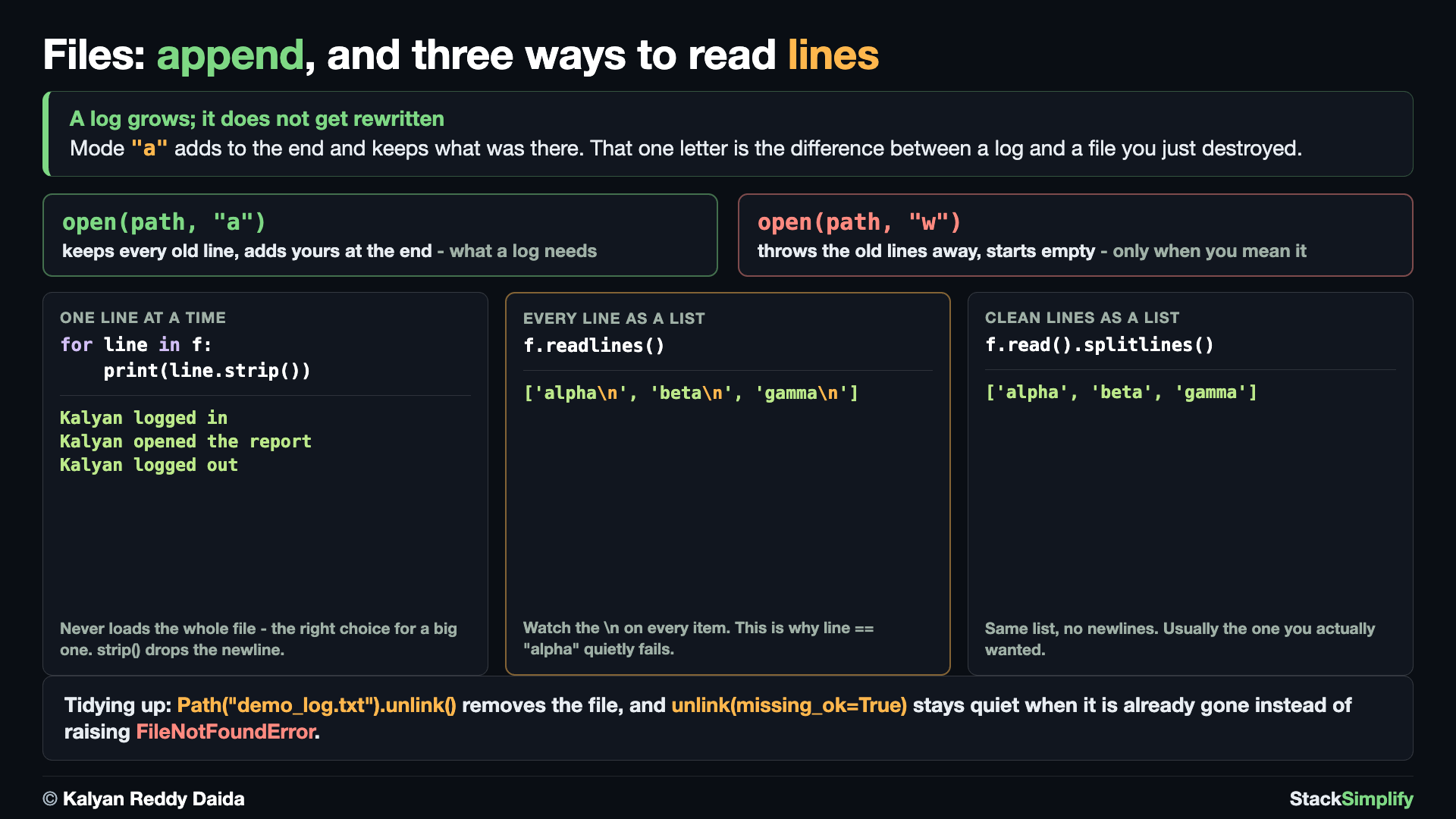
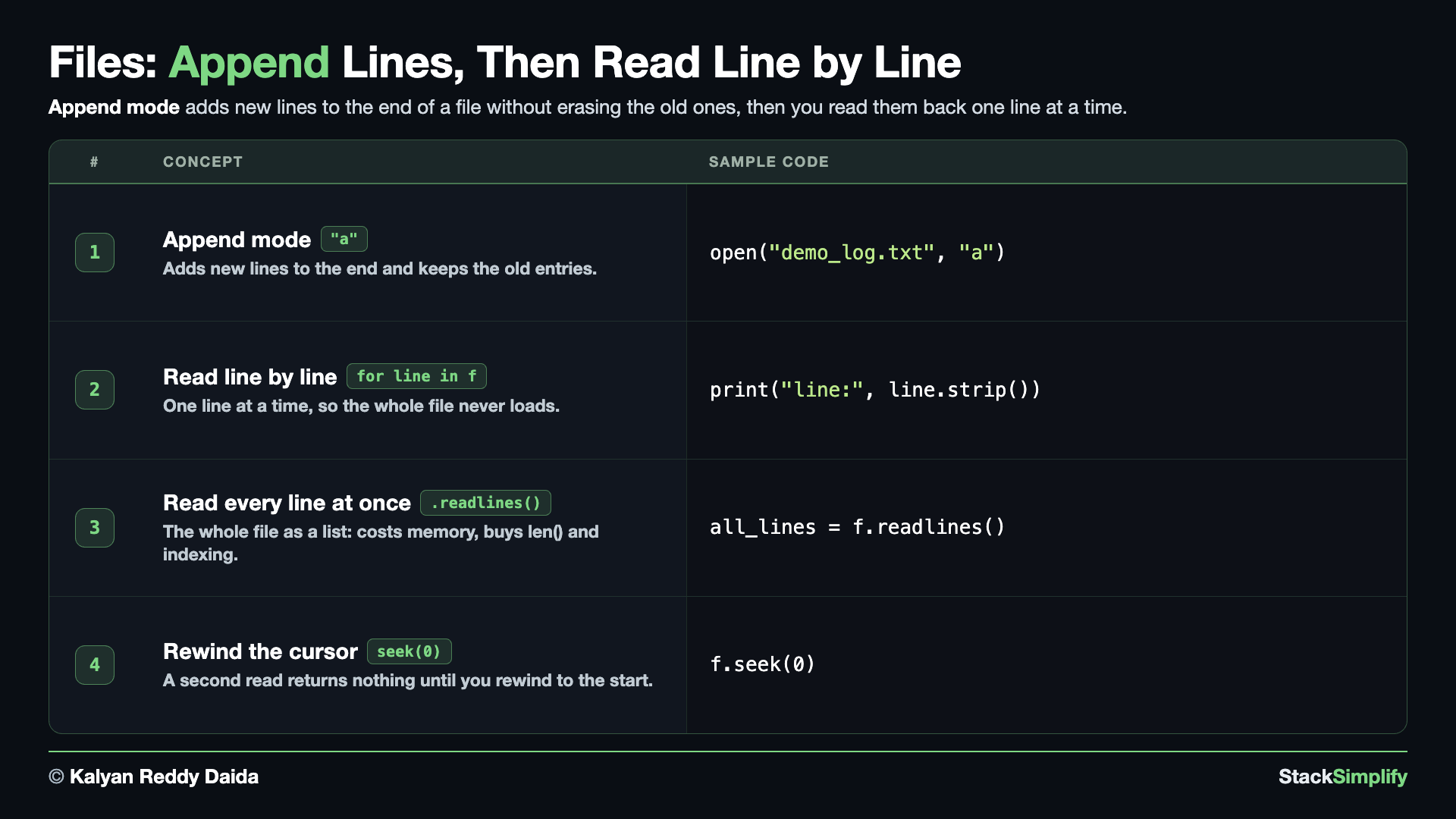
Mode "w" replaces the whole file every time, which is not what you want for something that grows. Create s10_step02_append_and_read_lines.py and build it concept by concept.
Concept 1: Add to a file with mode "a"
Mode "w" does not add to a file, it starts the file over. The block below tests both modes on the same file so you can see the difference rather than take it on trust.
E1 writes two lines with "w", then writes two more with "w". The second block wipes the first, so only third line and fourth line survive. E2 does exactly the same two writes with "a", and all four lines are there. That is the whole distinction, and it is why a log file is always opened with "a": every entry matters, and "w" would throw the day's history away on the next run.
# Concept-01: Mode "a" = append; it adds to the end of a file instead of replacing it
# Question: How do we add new lines to a log file over time without losing the old entries? (use append mode "a")
from pathlib import Path

# E1: First, test with "w" write mode. Each "w" STARTS THE FILE OVER, so the first pair is thrown away.
with open("demo_log.txt", "w", encoding="utf-8") as f:
    f.write("first line\n")
    f.write("second line\n")

with open("demo_log.txt", "w", encoding="utf-8") as f:
    f.write("third line\n")
    f.write("fourth line\n")

with open("demo_log.txt", "r", encoding="utf-8") as f:
    print(f.read().strip())

Path("demo_log.txt").unlink()   # clear it so E2 starts from nothing and the contrast is fair

# E2: Second, test with "a" append mode. Each "a" ADDS to the end, so everything survives.
with open("demo_log.txt", "a", encoding="utf-8") as f:
    f.write("first line\n")
    f.write("second line\n")

with open("demo_log.txt", "a", encoding="utf-8") as f:
    f.write("third line\n")
    f.write("fourth line\n")

with open("demo_log.txt", "r", encoding="utf-8") as f:
    print(f.read().strip())
Concept 2: Read a file one line at a time
Looping over the file object hands you one line at a time: Python reads a line, you finish with it, then it reads the next. Only that single line is ever in memory, so this reads a three-line log and a three-gigabyte log exactly the same way. Each line still carries its trailing newline, so strip() removes it before printing.
# Concept-02: Loop over the file to read ONE line at a time; the whole file never sits in memory
# Question: How do we read a file that is too big to hold in memory? (loop over the file object; strip() drops the trailing newline)
# The same demo_log.txt as Concept-01, written again so this block stands on its own
with open("demo_log.txt", "w", encoding="utf-8") as f:
    f.write("first line\n")
    f.write("second line\n")
    f.write("third line\n")

# Python hands you one line, you finish with it, then it hands you the next. Only ONE line is in
# memory at a time, so this reads a 3-line file and a 3 GB file exactly the same way.
with open("demo_log.txt", "r", encoding="utf-8") as f:
    for line in f:
        print("line:", line.strip())
Concept 3: Read every line at once with readlines()
readlines() makes the opposite trade to Concept 2: it pulls the whole file into a list in one go. That costs memory, and it buys you everything a list can do, like len() to count the lines or [-1] to jump straight to the last one. Note this block reads the SAME demo_log.txt as Concept 2, so the only thing that changes is HOW you read it. The lines come back with their \n still attached, which is exactly the contrast against Concept 2's strip().
Use the loop in Concept 2 by default, and readlines() when you genuinely need the whole thing at once.
# Concept-03: readlines() pulls the WHOLE file into a LIST at once, the opposite trade to Concept-02
# Question: How do we get every line as a list so we can count them or jump straight to one? (f.readlines(), or f.read().splitlines() for lines without the \n)
from pathlib import Path

# The SAME demo_log.txt as Concept-02, so the only thing that changes is HOW we read it.
with open("demo_log.txt", "w", encoding="utf-8") as f:
    f.write("first line\n")
    f.write("second line\n")
    f.write("third line\n")

# Everything lands in memory at once. That costs memory, and buys you len() and indexing.
with open("demo_log.txt", "r", encoding="utf-8") as f:
    all_lines = f.readlines()
print(all_lines)                      # each line still ends with \n
print("how many lines:", len(all_lines))
print("last line:", all_lines[-1].strip())

# Related, one line: f.read().splitlines() returns the same lines with the "\n" already removed,
# which saves you a .strip() when you do not need the raw newlines.
Concept 4: Rewind with f.seek(0) before reading again
An open file keeps a cursor, a marker for where the next read will start. f.read() moves that cursor all the way to the end, so a second f.read() on the same open file starts at the end and comes back with nothing. This surprises almost everyone once.
E1 does exactly that: read1 holds all three lines and read2 prints as an empty line. E2 adds one line, f.seek(0), which moves the cursor back to position 0, and now read2 holds the whole file again.
# Concept-04: after a read the cursor sits at the END of the file; f.seek(0) rewinds it to the start
# Question: why does reading the same open file a second time give me nothing back? (the cursor is already at the end; call f.seek(0) first)
from pathlib import Path

# Creating the file
with open("demo_log.txt", "w", encoding="utf-8") as f:
    f.write("first line\n")
    f.write("second line\n")
    f.write("third line\n")

# E1: read TWICE without rewinding. The first read leaves the cursor at the end of the file,
# so the second one starts there and finds nothing left, printing an empty line.
with open("demo_log.txt", "r", encoding="utf-8") as f:
    read1 = f.read()
    read2 = f.read()
print("read1:", read1)
print("read2:", read2)

# E2: the same two reads, but f.seek(0) moves the cursor back to position 0 first.
with open("demo_log.txt", "r", encoding="utf-8") as f:
    read1 = f.read()
    f.seek(0)
    read2 = f.read()
print("read1:", read1)
print("read2:", read2)

# Remove file created
Path("demo_log.txt").unlink()
Pages for this step: Concept | Practice | Workshop
Python Files for this step: Concept | Practice | Practice Solutions | Workshop | Workshop Solutions
Step-03: JSON - Save and Load Structured Data
File: s10_step03_json_save_and_load.py
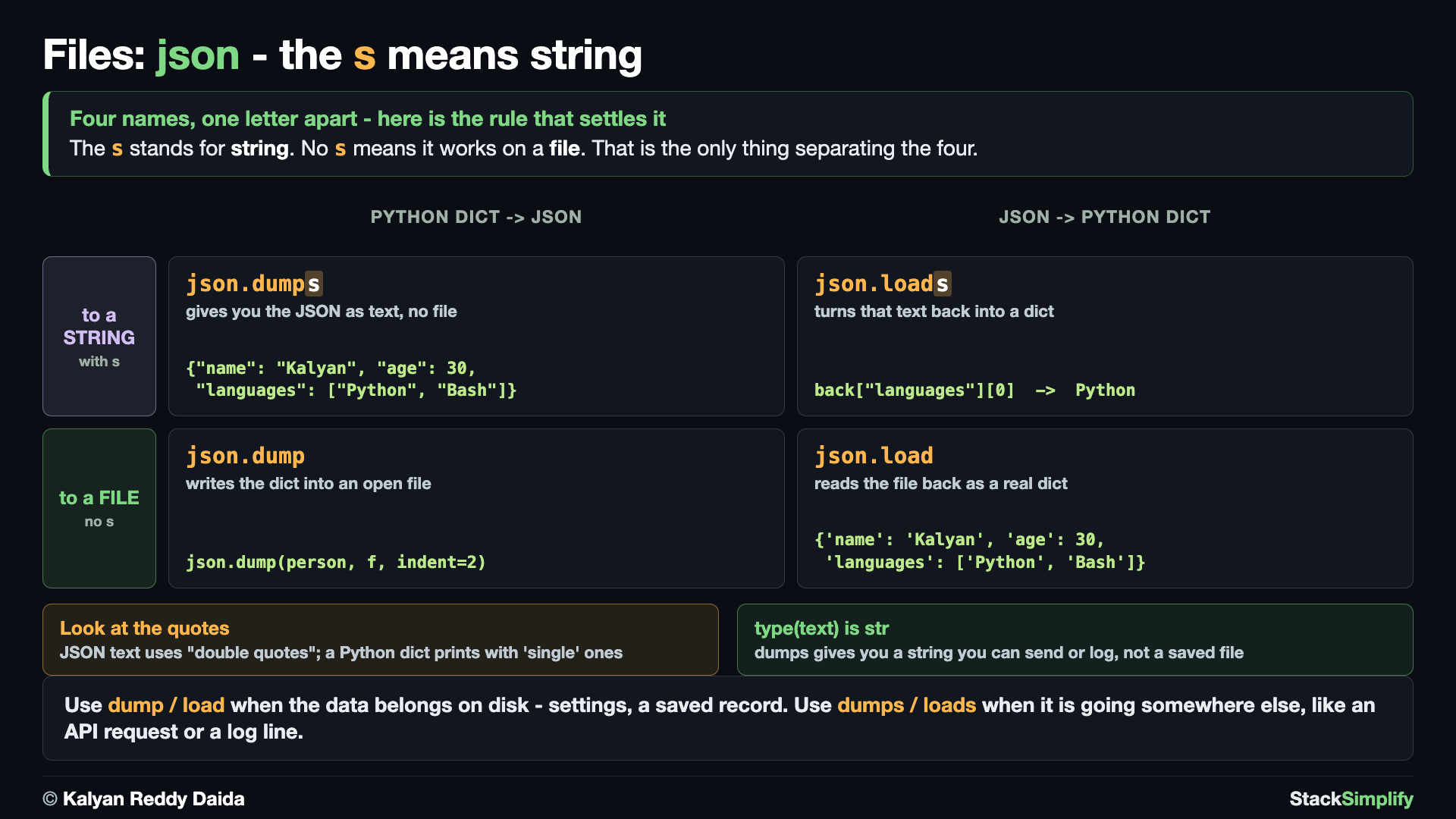
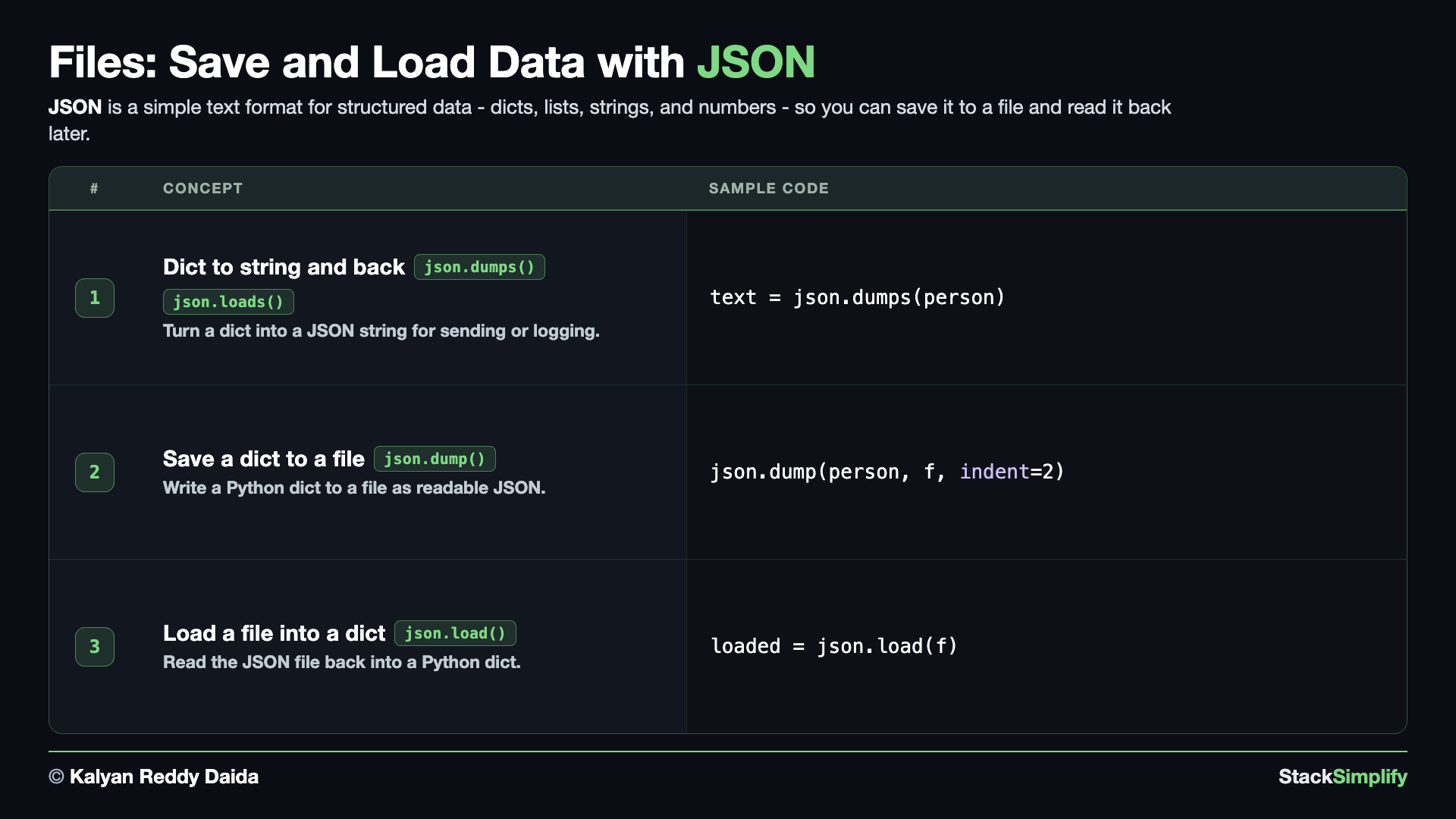
Text files are fine for plain words, but real data often has structure: a record with several fields, a list inside a dictionary. JSON is the everyday format for that. Create s10_step03_json_save_and_load.py and build it concept by concept.
Concept 1: Convert to and from a JSON string with json.dumps / json.loads
Start with JSON as plain text, before any file is involved. json.dumps(person) turns a dict into a JSON string you can print, log, or send over a network, and json.loads(text) turns that string back into a real dict. Note the printed text uses "double quotes", because that is JSON's rule, not Python's.
The s on the end is the whole trick: s means string. The file versions in the next two concepts are the same names with the s dropped.
# Concept-01: json.dumps -> a dict to a JSON STRING; json.loads -> the string back to a dict (the s = string)
# Question: How do we turn a dict into JSON text we can print, send or log, and turn that text back into a dict?
import json

person = {"name": "Kalyan", "age": 30, "languages": ["Python", "Bash"]}
text = json.dumps(person)   # dict -> a JSON string (not a file)
print(text)
print(type(text))

back = json.loads(text)     # JSON string -> a dict again
print("first language is:", back["languages"][0])
{"name": "Kalyan", "age": 30, "languages": ["Python", "Bash"]}
<class 'str'>
first language is: Python
Concept 2: Save a dictionary to a file with json.dump
json.dump is Concept 1's dumps with the file handling built in: it writes the JSON straight into an open file, so json.dump(person, f) does the same job as f.write(json.dumps(person)). That is why there is no s here, the file is doing the work.
indent=2 is what makes the saved file readable, so the block reads it straight back as plain text (mode "r", from Step-01) to show you exactly what landed on disk: one key per line, nested values pushed further in. Without indent=2 the whole thing would be a single long line.
# Concept-02: json.dump is that same JSON written straight into a FILE; no s means a file (indent=2 makes it easy to read)
# Question: How do we save a Python dictionary {"name": "Kalyan", "age": 30, "languages": ["Python", "Bash"]} with strings, numbers, and lists to a file so we can read it back later?
import json

# A dictionary with a few different value types.
person = {"name": "Kalyan", "age": 30, "languages": ["Python", "Bash"]}
with open("demo_data.json", "w", encoding="utf-8") as f:
    json.dump(person, f, indent=2)

# Read the file back as plain TEXT (mode "r" from Step-01) to SEE what indent=2 wrote.
with open("demo_data.json", "r", encoding="utf-8") as f:
    print(f.read())
Concept 3: Load a JSON file back into a dict with json.load
json.load reads an open file and hands back a real Python dict, with the numbers still numbers and the list still a list. Index it exactly like any other dict. This is the last concept that uses demo_data.json, so it removes the file at the end.
# Concept-03: json.load reads that file back into a normal Python dict
# Question: How do we read a JSON file (demo_data.json) back into a Python dictionary with all the original types and structure?
import json
from pathlib import Path

# The same file as Concept-02, saved again so this block stands on its own
person = {"name": "Kalyan", "age": 30, "languages": ["Python", "Bash"]}
with open("demo_data.json", "w", encoding="utf-8") as f:
    json.dump(person, f, indent=2)

with open("demo_data.json", "r", encoding="utf-8") as f:
    loaded = json.load(f)

print(loaded)
print("name is:", loaded["name"])
print("first language is:", loaded["languages"][0])

# Remove file created
Path("demo_data.json").unlink()
{'name': 'Kalyan', 'age': 30, 'languages': ['Python', 'Bash']}
name is: Kalyan
first language is: Python
json.dump(data, f, indent=2) is readable
Adding indent=2 writes pretty, human-readable JSON. JSON maps almost one-to-one to Python dicts and lists. More handy tools live in the Standard Library.
Pages for this step: Concept | Practice | Workshop
Python Files for this step: Concept | Practice | Practice Solutions | Workshop | Workshop Solutions
Step-04: Paths with pathlib
File: s10_step04_paths_with_pathlib.py
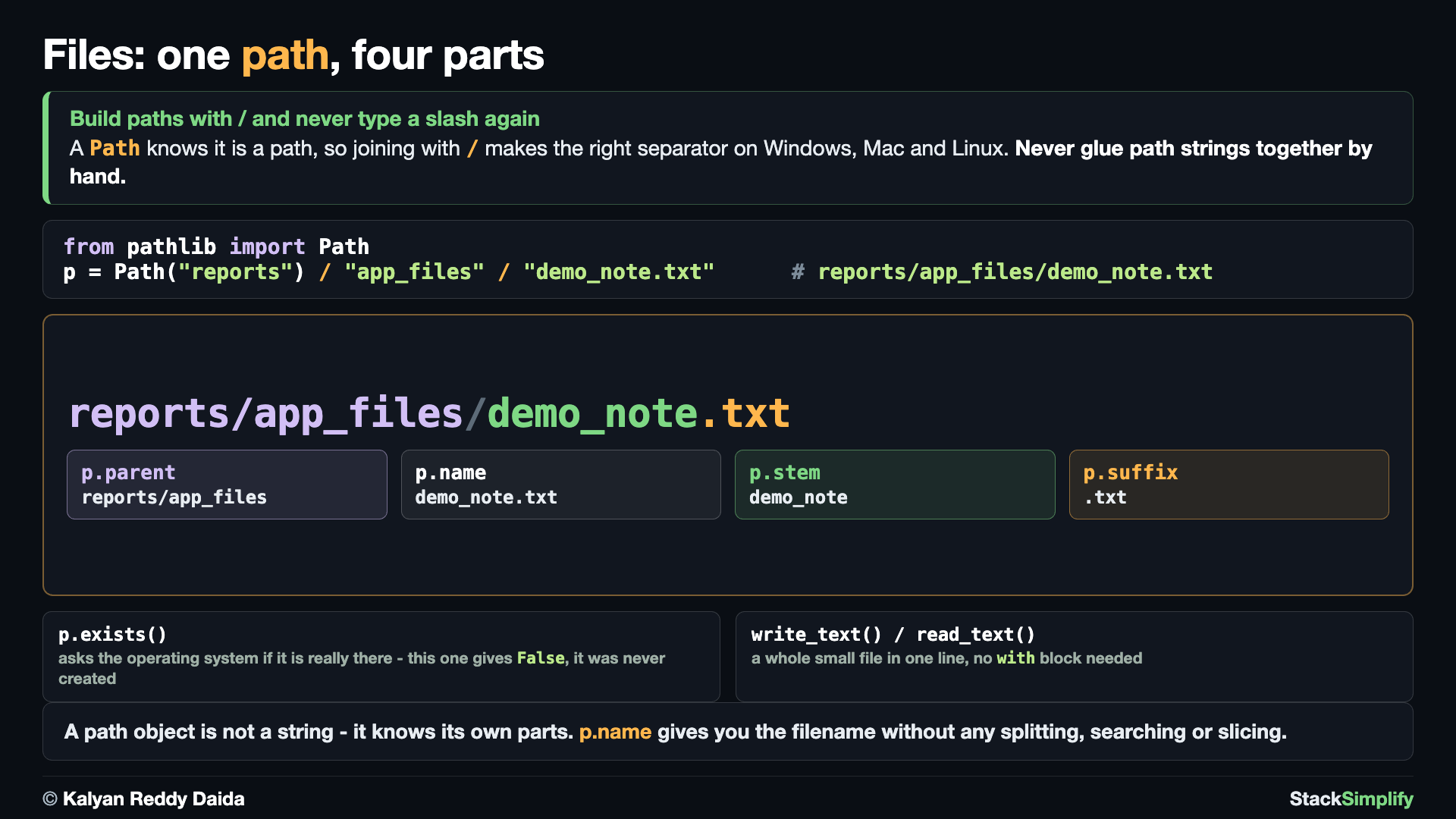
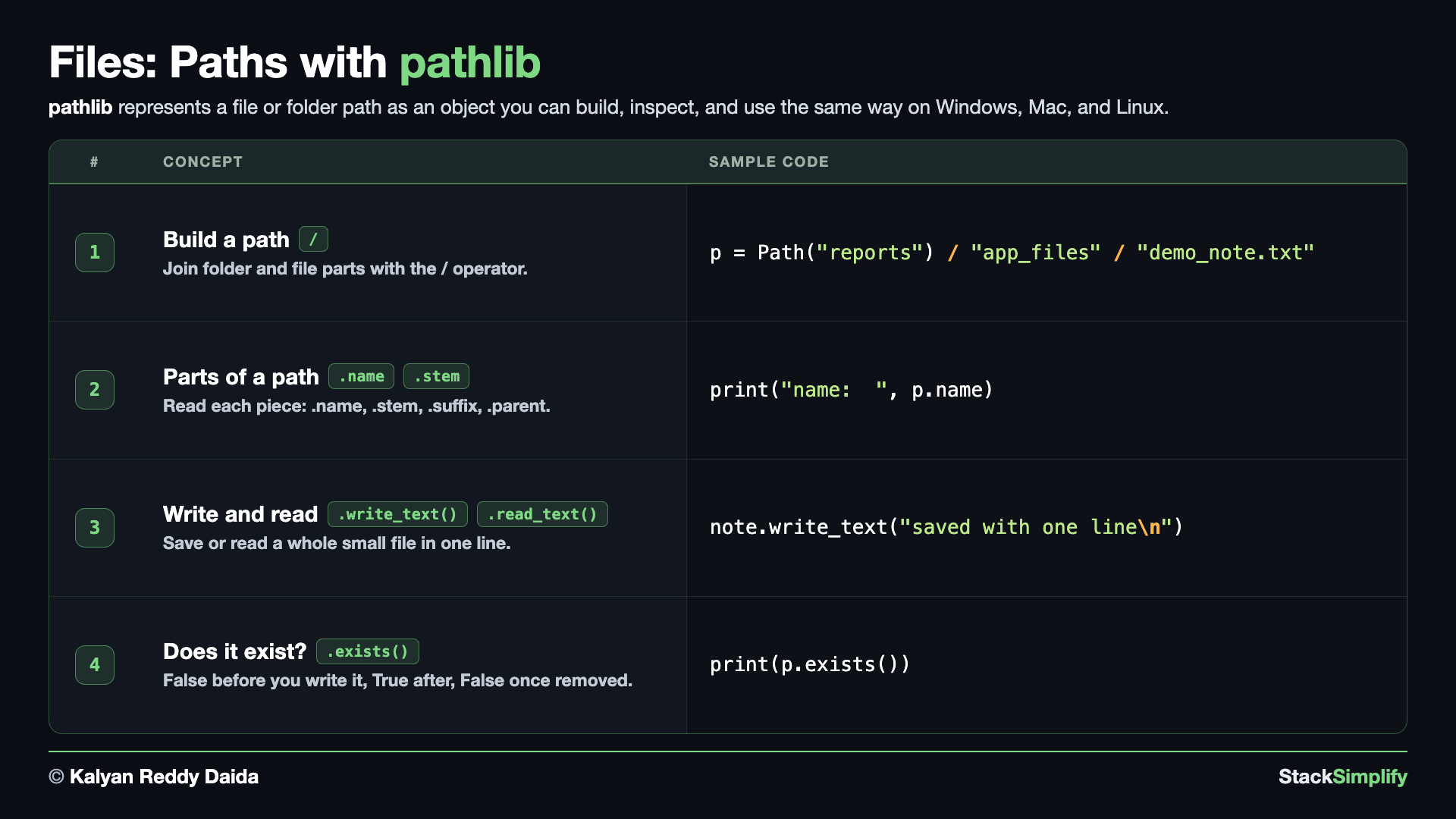
You met Path back in Step-01, where Path("demo_notes.txt") wrapped a file name so .unlink() could delete it. Now build one out of parts. A path is the address of a file or folder, and writing paths by hand is error-prone because Windows, macOS, and Linux do not all agree on the slash. Create s10_step04_paths_with_pathlib.py and build it concept by concept.
Concept 1: Build a path by joining with /
pathlib.Path lets you join the parts of a path with the / operator, and it builds the correct path for whatever system the code runs on. No hand-typed slashes, no worrying whether you need / or \. The result here, reports/app_files/demo_note.txt, is a Path object you can pass anywhere a filename is expected. It is the same file name the next two concepts write and read, so you can follow one file through the whole step.
# Concept-01: Build a path by joining parts with the / operator
# Question: How do we build a file path from the parts "reports", "app_files", and "demo_note.txt"
# that works on Windows, Mac, and Linux without hardcoding forward or backward slashes?
from pathlib import Path

file_path = Path("reports") / "app_files" / "demo_note.txt"

print(file_path)  # reports/app_files/demo_note.txt
Concept 2: Split a path into its parts with .name, .suffix, .stem, .parent
A Path knows about its own parts, so you never have to slice strings by hand. .name is the file name with its extension, .suffix is just the extension, .stem is the name without the extension, and .parent is the folder it lives in. These read clearly and work the same on every system.
# Concept-02: Split a path into its parts with .name, .suffix, .stem, and .parent
# Question-1: How do we get the filename (.name) and the name without extension (.stem)
# from a path like Path("reports") / "app_files" / "demo_note.txt"?
# Question-2: How do we get the file extension (.suffix) and the parent folder (.parent)?
from pathlib import Path

file_path = Path("reports") / "app_files" / "demo_note.txt"

print("name:  ", file_path.name)    # demo_note.txt (file name with extension)
print("suffix:", file_path.suffix)  # .txt (file extension)
print("stem:  ", file_path.stem)    # demo_note (file name without extension)
print("parent:", file_path.parent)  # reports/app_files (folder containing the file)
Concept 3: Write and read a whole file with write_text() / read_text()
Path.write_text() writes a whole string to a file and closes it for you, and Path.read_text() reads the whole file back as one string. They are the one-line shortcuts for the with open(...) blocks from Step-01: no block, no handle, no mode. Reach for them when the file is small and you want all of it at once, and keep with open(...) when you need to work line by line or append.
# Concept-03: Path.write_text() and Path.read_text(), the shortest way to write or read a whole file
# Question-1: How do we write an entire small file in one line with Path.write_text()
# without using an open() block?
# Question-2: How do we read an entire small file back in one line with Path.read_text()
# without using an open() block?
from pathlib import Path

# Same file name as Concepts 1 and 2, but written right here in the current folder.
# A path with folders in it can only be written once those folders already exist.
note_file = Path("demo_note.txt")

note_file.write_text(
    "saved with one line\n",
    encoding="utf-8"
)  # writes the whole string and closes the file for you

print("read_text:", note_file.read_text(encoding="utf-8").strip())
# reads the whole file back as one string

# Remove file created
note_file.unlink()
Concept 4: Check a path with .exists()
.exists() asks the operating system whether a path is really on disk and answers True or False. It is what you call before reading a file you are not certain about, so your program can say something useful instead of crashing.
This block is Concept 3 again, on the same demo_note.txt, with an .exists() check wrapped around each step. Watch one file appear and disappear: False before it is written, True once write_text() has run, and False again after unlink().
# Concept-04: .exists() asks the operating system whether a path is really there
# Question: How do we check whether a file is on disk before we try to read it?
# (Path(...).exists() answers True or False)
from pathlib import Path

# The SAME demo_note.txt as Concept-03, with an .exists() check wrapped around each step,
# so you can watch one file appear and disappear.
note_file = Path("demo_note.txt")

print("before we write it:", note_file.exists())  # False, nothing is there yet

note_file.write_text(
    "saved with one line\n",
    encoding="utf-8"
)

print("read_text:", note_file.read_text(encoding="utf-8").strip())
print("after we write it:", note_file.exists())  # True, the file is on disk now

# Remove file created
note_file.unlink()

print("after we remove it:", note_file.exists())  # False again
before we write it: False
read_text: saved with one line
after we write it: True
after we remove it: False
Build paths with pathlib, not string joins
Joining path parts with the / operator works on every operating system and reads clearly. Avoid gluing paths together by hand with "/" or "\\" - that breaks across systems.
Pages for this step: Concept | Practice | Workshop
Python Files for this step: Concept | Practice | Practice Solutions | Workshop | Workshop Solutions
Step-05: Save Next to Your Script
File: s10_step05_save_next_to_your_script.py
You can now build paths and write files, but there is one question left, and it is the one that loses beginners their first file: where did it actually go? Create s10_step05_save_next_to_your_script.py and build it concept by concept.
Run this step as a file, not in the terminal
Press F5, or run python s10_step05_save_next_to_your_script.py. Do not paste these blocks into the interactive prompt. They use __file__, which Python only creates while it is running a real file, and pasting them gets you NameError: name '__file__' is not defined. That is not a limitation to work around, it is the lesson: this step asks "where does my script live?", and a terminal prompt does not live anywhere.
Concept 1: A bare name lands where you RAN it; __file__ pins it to your code
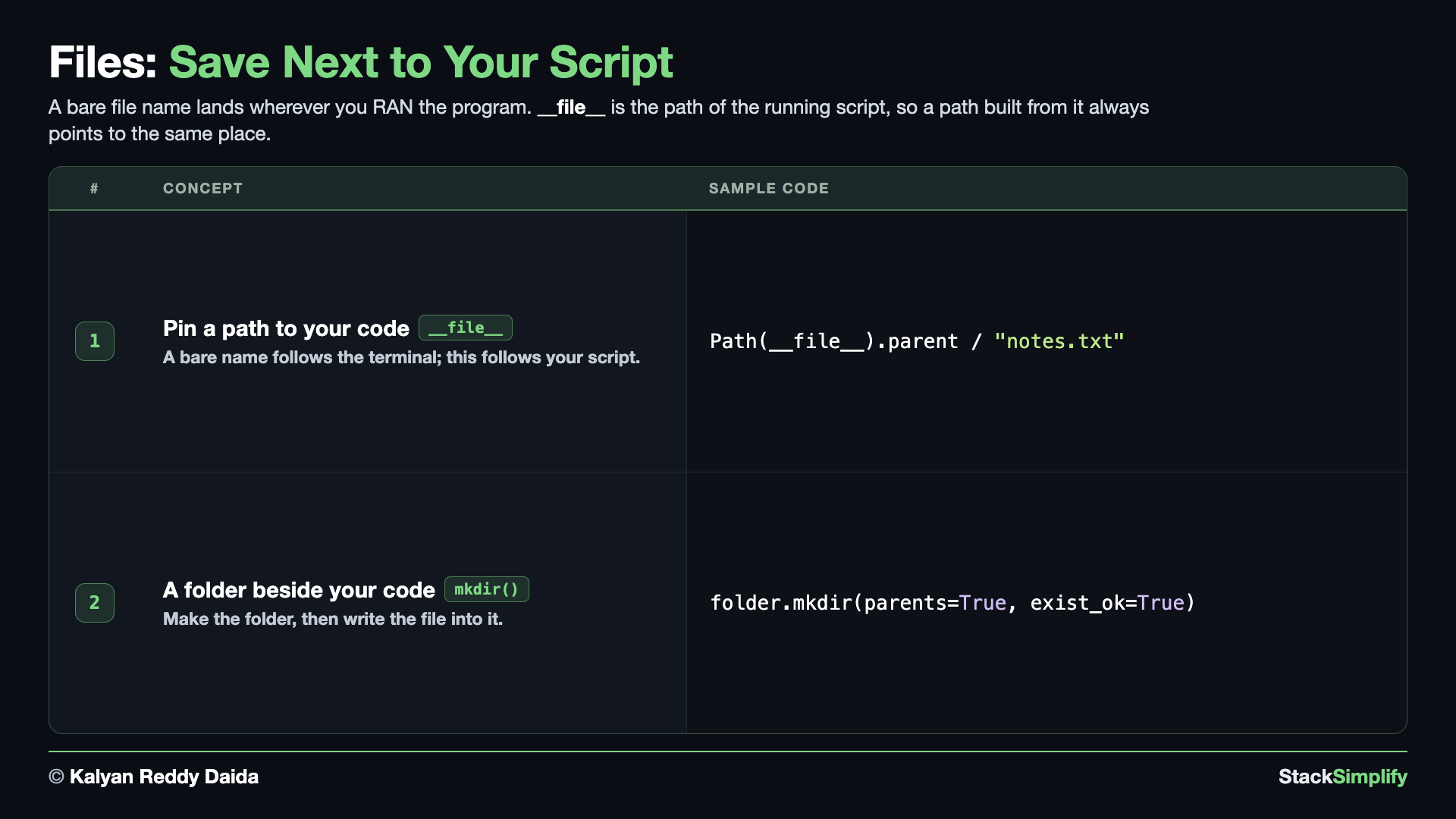
Every file you have written so far used a bare name like demo_note.txt, and a bare name has no folder in front of it. Its .parent is ., which means "right here" - and "here" is whatever folder you happened to run the program from, not the folder your code lives in. Run the same script from somewhere else and the file lands somewhere else. That is why a beginner's first saved file so often seems to disappear.
__file__ is the path of the script Python is running right now, so Path(__file__).parent is the folder that script lives in. Build a path from that and it points at the same place every time, whatever folder you started from.
# Concept-01: a bare file name lands wherever you RAN the program; Path(__file__).parent pins it to your code
# Question: why does the file I saved seem to disappear, and how do I always put it next to my script? (build the path from __file__)
from pathlib import Path

# A bare name carries no folder in front of it. Its parent is ".", which means "right here",
# and "here" is whatever folder you happened to run the program from.
bare_path = Path("demo_note.txt")

print("bare path:", bare_path)
print("Parent folder:", bare_path.parent)

# __file__ is the path of the script Python is running right now, and .parent is the folder
# that script lives in. A path built from it points at the same place every time, no matter
# which folder you started the program from.
anchored_path = Path(__file__).parent / "demo_note.txt"

print("File 1:", Path(__file__))
print("File 2:", Path(__file__).parent)
print("anchored file name:", anchored_path.name)
print("anchored stem:", anchored_path.stem)
print("anchored suffix:", anchored_path.suffix)
print("anchored parent:", anchored_path.parent)
bare path: demo_note.txt
Parent folder: .
File 1: <your folder>/s10_step05_save_next_to_your_script.py
File 2: <your folder>
anchored file name: demo_note.txt
anchored stem: demo_note
anchored suffix: .txt
anchored parent: <your folder>
<your folder> above stands in for the real folder your script lives in; when you run it you will see your own full path printed there, which is exactly the point. Notice File 1 is the script itself and File 2 is the folder holding it, and that anchored parent is that same folder, so the file lands beside your code every time.
Concept 2: Make a folder next to your script and write into it
Now put the two ideas together, which is what a real program does with its data. Path.mkdir() creates a folder; parents=True also creates any missing folders above it, so demo_data/app_files is made in one call even though demo_data did not exist either; and exist_ok=True says "leave it alone if it is already there" instead of raising an error, which is what you want in code that runs more than once. Anchor the folder to Path(__file__).parent and your data sits beside your code, every time. The folder is called demo_data on purpose: it is the same shape Milestone Project 2 builds when it saves into a data/ folder next to itself.
rmdir() removes a folder and only works on an empty one, so the file goes first, then the inner folder, then the outer one.
# Concept-02: mkdir() a folder next to your script, then write a file into it
# Question: how do we make a data folder beside our code and save into it? (Path(__file__).parent / name, then mkdir(parents=True, exist_ok=True))
from pathlib import Path

script_dir = Path(__file__).parent

report_folder = script_dir / "demo_data" / "app_files"

report_folder.mkdir(parents=True, exist_ok=True)
# makes demo_data AND demo_data/app_files in one call

note_file = report_folder / "demo_note.txt"

note_file.write_text(
    "saved next to the script\n",
    encoding="utf-8"
)

print("folder made:", report_folder.name)
print("file written:", note_file.name)
print("is it really there?", note_file.exists())
print("saved inside:", note_file.parent.parent.name)

# Remove file and folders created
note_file.unlink()
report_folder.rmdir()          # the inner folder (app_files)
report_folder.parent.rmdir()   # then the outer folder (demo_data)
folder made: app_files
file written: demo_note.txt
is it really there? True
saved inside: demo_data
This is the move Milestone Project 2 makes
ExpenseBook saves to Path(__file__).parent / "data" / "expenses.json" for exactly this reason: the project must find its own data no matter where you launch it from.
Pages for this step: Concept | Practice | Workshop
Python Files for this step: Concept | Practice | Practice Solutions | Workshop | Workshop Solutions
Practice and Workshop
Every step has a matching practice problem - try it yourself, then expand the solution to check. Some practices end with a short input() "Write a Program" problem. Every step also has an optional workshop problem (the same idea in a car scenario). The numbers line up with the steps, so if you get stuck on practice-03, re-read Concept Step-03.
| Step | Concept Name | Concept | Practice | Workshop |
|---|---|---|---|---|
| 01 | write and read text | concept | practice | workshop |
| 02 | append and read lines | concept | practice | workshop |
| 03 | json save and load | concept | practice | workshop |
| 04 | paths with pathlib | concept | practice | workshop |
| 05 | save next to your script | concept | practice | workshop |
Open the full Practice page and Workshop page for this section - each problem has its statement, expected output, an optional hint, and an expandable solution.
What You Learned
with open(...)writes and reads files safely and closes them for you. Modes:"w"write (overwrites),"a"append,"r"read. Passencoding="utf-8"every time so text reads the same on every computer.- Read a whole file with
f.read(), or loopfor line in f:and useline.strip()to read it line by line. json.dumpsaves a dictionary to a file;json.loadreads it back into a dictionary.pathlib.Pathbuilds cross-platform paths with/, and gives you.name,.suffix,.stem,.parent,.exists(), and the one-lineread_text()/write_text().
Next
Section 11: Standard Library Essentials. The handy modules that ship with Python, like math, random, datetime, and Counter.
Prefer to learn by watching?
The full video course teaches every concept on screen and builds the projects with you, step by step.
Section 09: Error Handling and Debugging Next: Section 11: Standard Library Essentials